Best Laptops for Digital Nomads 2026: Tested on the Road
After testing laptops across 20+ countries, these are the best laptops for digital nomads — balancing portability, battery life, and performance.
Your laptop is the single most important tool you own as a digital nomad. Not your phone, not your passport, not your backpack — your laptop. It is the thing that earns your income, connects you to clients and colleagues, and determines whether you can work productively from a cafe in Lisbon, a coworking space in Chiang Mai, or a beachside apartment in Playa del Carmen. Everything else in your pack is replaceable within a day. A laptop that does not fit your workflow costs you hours every single week.
After three years of full-time remote work across 20+ countries, we have used and tested dozens of laptops in conditions that no review lab replicates. Thai cafe tables with no outlets for six hours. Humid Bali coworking spaces where condensation fogs lesser screens. Overnight buses where a flickering overhead light is your only illumination. Airport lounges where you need to bang out a deliverable before boarding. The laptop that looks great on a spec sheet does not always survive the reality of nomad life.
The five laptops on this list are the ones that did. Each earned its spot through sustained real-world use — not a weekend review, but months of daily work as a primary machine across multiple countries and climates.
What makes a laptop “nomad-ready” is different from what makes a laptop “good.” A gaming laptop with a stunning display and blistering performance is useless if the battery dies after three hours and the fans sound like a jet engine in a quiet cafe. A thin ultrabook is meaningless if the screen washes out the moment you sit near a window. We evaluate every laptop through the lens of what actually matters on the road: weight in your pack, battery life away from outlets, screen visibility in bright environments, keyboard quality for all-day typing, and what happens when something breaks 8,000 miles from the nearest authorized repair center.
Here are the five best laptops for digital nomads in 2026, ranked by real-world performance across the criteria that matter most.
Quick Comparison: Best Laptops for Digital Nomads
| Feature | MacBook Air M4 15" | ThinkPad X1 Carbon Gen 12 | MacBook Pro 14" M4 Pro | Framework Laptop 16 | ASUS Zenbook 14 OLED |
|---|---|---|---|---|---|
| Weight | 3.3 lbs (1.51 kg) | 2.48 lbs (1.12 kg) | 3.4 lbs (1.55 kg) | 4.63 lbs (2.1 kg) | 2.82 lbs (1.28 kg) |
| Battery Life | 18 hrs (tested: 14-16) | 15 hrs (tested: 10-12) | 24 hrs (tested: 16-20) | 12 hrs (tested: 8-10) | 13 hrs (tested: 9-11) |
| Display | 15.3" Liquid Retina, 500 nits | 14" 2.8K OLED, 400 nits | 14.2" Liquid Retina XDR, 1000 nits | 16" 2560x1600 IPS, 500 nits | 14" 2.8K OLED, 600 nits |
| Processor | Apple M4 (10-core) | Intel Core Ultra 7 155H | Apple M4 Pro (12-core) | AMD Ryzen 7 7840HS | Intel Core Ultra 7 155H |
| RAM | 16 GB (configurable to 32) | 16 GB - 64 GB | 24 GB (configurable to 48) | 16 GB - 64 GB (user-upgradeable) | 16 GB |
| Storage | 256 GB - 2 TB | 256 GB - 2 TB | 512 GB - 4 TB | User-swappable NVMe | 512 GB - 1 TB |
| Ports | 2x USB-C / Thunderbolt, MagSafe, 3.5mm | 2x Thunderbolt 4, 2x USB-A, HDMI, 3.5mm | 3x Thunderbolt 5, HDMI, SD, MagSafe, 3.5mm | 6x modular expansion bays | 2x Thunderbolt 4, USB-A, HDMI, 3.5mm |
| Price | From ~$1,299 | From ~$1,399 | From ~$1,999 | From ~$1,399 | From ~$800 |
| Our Pick | Best Overall | Best Windows | Best Power User | Best Repairable | Best Budget |
| Visit MacBook Air M4 15" | Visit ThinkPad X1 Carbon Gen 12 | Visit MacBook Pro 14" M4 Pro | Visit Framework Laptop 16 | Visit ASUS Zenbook 14 OLED |
How We Tested
We do not review laptops in a climate-controlled office with a power strip at arm’s reach. Every laptop on this list was used as a primary work machine for a minimum of six weeks across real nomad conditions:
- Battery drain tests in cafe sessions with no outlet — timed from 100% to shutdown with a standardized workload of browser tabs, Slack, a code editor, Spotify streaming, and occasional video calls.
- Screen visibility assessed in bright cafes near windows, outdoor terraces in direct sunlight, and dimly lit Airbnb kitchens at night.
- Keyboard endurance during 6-8 hour writing and coding sessions, tracking fatigue and accuracy over time.
- Weight impact carried daily in a 28L daypack alongside a portable monitor, charger, and accessories.
- Heat and noise measured in quiet cafe environments — does the fan spin up during a Zoom call? Can the person next to you hear it?
- Durability during transit: bus rides, tuk-tuks, motorcycle taxis, overhead compartments, and the general chaos of long-term travel.
We also tested each laptop with our recommended portable monitor, laptop stand, and keyboard setup to evaluate how well it integrates into a full mobile workstation.
Best Laptops for Digital Nomads
1. MacBook Air M4 15” — Best Overall
The MacBook Air M4 15” is the laptop we recommend to the majority of digital nomads, and it is the machine we personally reach for most mornings. It nails the three things that matter most on the road: battery life, weight, and silence. Everything else — performance, display quality, build — is excellent, but those three pillars are why it earns the top spot.
Battery life is the killer feature. Apple rates it at 18 hours. In our real-world testing across cafes in Medellin, coworking spaces in Lisbon, and Airbnbs in Bangkok, we consistently got 14-16 hours of mixed productivity use: browser with 15-20 tabs, Slack, VS Code, Spotify streaming, and 1-2 video calls. That is an entire work day plus a Netflix session in the evening, all on a single charge. We routinely left the charger at home for 8-hour cafe sessions without a second thought. No Windows laptop we have tested comes close to this kind of real-world endurance.
The fanless design is a genuine competitive advantage in shared spaces. The M4 chip runs cool enough that Apple eliminated the fan entirely. There is literally no moving part in this machine. In a silent library in Kyoto, a hushed cafe in Porto, or during a video call in a shared Airbnb, you generate zero noise. ThinkPads and Zenbooks spin up their fans during video calls and sustained workloads — the MacBook Air never does.
At 3.3 lbs for the 15-inch model, it sits in the sweet spot between screen real estate and portability. The 15.3-inch Liquid Retina display at 500 nits is bright enough for window-adjacent work and renders text beautifully at the default scaled resolution. The extra screen size over the 13-inch model makes a tangible difference for coding, spreadsheets, and side-by-side document work — and the weight penalty is only 0.6 lbs.
Performance handles everything except heavy professional workloads. The M4 chip’s 10-core CPU and 10-core GPU breeze through web development, writing, data analysis, graphic design in Figma, photo editing in Lightroom, and even light video editing in Final Cut Pro. It begins to struggle with complex 4K video timelines, large machine learning models, and sustained multi-stream encoding — tasks that belong on the MacBook Pro below.
The port situation is the one genuine weakness. Two USB-C / Thunderbolt ports plus a MagSafe charger and headphone jack. No USB-A, no HDMI, no SD card slot. You will need a USB-C hub for anything beyond basic peripherals. This is a solved problem — a $30 hub covers it — but it is an extra thing to carry and an extra thing to forget at a cafe.
The 16 GB base RAM is adequate for most workflows in 2026. If you routinely keep 40+ browser tabs open, run Docker containers, or work in memory-hungry applications, configure it with 24 GB or 32 GB at purchase — Apple Silicon RAM is soldered and not upgradeable later.
Pros
- 18-hour rated battery — 14-16 hours in real-world nomad use
- Completely fanless — zero noise in cafes and shared spaces
- 3.3 lbs for a 15-inch screen — exceptional weight-to-screen ratio
- 500-nit display readable in bright environments near windows
- M4 chip handles all mainstream productivity and creative tasks
- MagSafe charging — no risk of yanking the laptop off a cafe table
- Best-in-class trackpad and speakers
Cons
- Only 2 USB-C ports — requires a hub for most setups
- RAM is soldered — not upgradeable after purchase
- No HDMI or USB-A ports natively
- Starts at $1,299 — not budget-friendly
- macOS only — not suitable if your workflow requires Windows-specific software
- 256 GB base storage is tight — 512 GB recommended minimum
Best for: The majority of digital nomads — writers, marketers, designers, web developers, project managers, consultants, and anyone who values battery life and portability above raw power. This is the default recommendation unless you have a specific reason to choose something else.
Check MacBook Air M4 15-inch on Amazon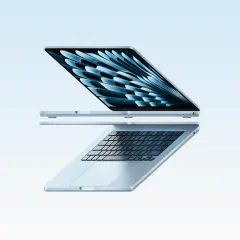
2. ThinkPad X1 Carbon Gen 12 — Best for Windows Users
The Lenovo ThinkPad X1 Carbon Gen 12 is the Windows laptop that most closely matches the MacBook Air’s nomad credentials — and in several areas, it surpasses them. If your workflow requires Windows, if you despise macOS, or if you simply prefer the ThinkPad experience, the X1 Carbon is the machine to buy.
The keyboard is the best on any laptop, period. This is not subjective fanboy territory — it is a consensus opinion among professional reviewers and anyone who has typed on a ThinkPad for more than ten minutes. The 1.5mm key travel, the subtle curve of each keycap, the snappy tactile feedback, and the legendary TrackPoint nub between G, H, and B create a typing experience that makes you want to write more. After six weeks on the X1 Carbon, switching back to a MacBook keyboard feels flat and lifeless. If you are a writer or developer who types 5,000+ words daily, the keyboard alone justifies choosing this laptop.
At 2.48 lbs (1.12 kg), the X1 Carbon is the lightest laptop on this list — nearly a full pound lighter than the MacBook Air 15”. For ultralight backpackers and one-bag travelers who weigh every item, this matters. The 14-inch chassis is compact enough to use comfortably on airplane tray tables and cramped cafe corners.
Port selection puts Apple to shame. Two Thunderbolt 4 ports, two USB-A ports, a full-size HDMI 2.1 port, and a 3.5mm headphone jack — all without a hub. You can plug in a portable monitor, a USB mouse, a flash drive, and an HDMI projector simultaneously without carrying any adapter. For nomads who present to clients, connect to hotel TVs, or use USB-A peripherals, this is a meaningful daily advantage.
The optional 2.8K OLED display is stunning — deep blacks, vibrant colors, and 400 nits of brightness that handles most indoor lighting conditions. It is not as bright as the MacBook Air’s 500 nits, which makes it slightly harder to read near sun-drenched windows, but for 90% of indoor work environments it is more than sufficient. The OLED panel also delivers superior contrast in dim environments, making late-night work sessions easier on the eyes.
Battery life is good but not MacBook-tier. Lenovo rates the X1 Carbon at 15 hours. Our real-world testing yielded 10-12 hours of mixed use — respectable for a Windows ultrabook, but 3-4 hours short of the MacBook Air. You can comfortably work a full morning cafe session without the charger, but all-day outlet-free work requires planning. The Intel Core Ultra 7 155H is a capable chip, but Intel’s efficiency still trails Apple Silicon by a meaningful margin.
MIL-STD-810H durability certification means the X1 Carbon has been tested against 12 military-grade durability criteria including extreme temperatures, humidity, vibration, and drops. This is not marketing theater — ThinkPads genuinely survive abuse that would crack a MacBook. We have seen X1 Carbons survive falls from standing desk height onto concrete floors. For nomads who subject their gear to rough transport, tropical humidity, and the general chaos of bus travel, the durability certification provides real peace of mind.
Pros
- Best laptop keyboard in the industry — 1.5mm travel with perfect tactile feedback
- Lightest laptop on this list at 2.48 lbs
- Excellent port selection — USB-A, HDMI, Thunderbolt 4 without any hub
- MIL-STD-810H military-grade durability for rough travel conditions
- Optional 2.8K OLED display with deep blacks and vibrant colors
- Lenovo global warranty service — repair centers in most major cities worldwide
- Windows 11 with full software compatibility for business applications
Cons
- Battery life (10-12 hours real-world) trails MacBook Air by 3-4 hours
- Fan noise during video calls and sustained workloads — audible in quiet spaces
- Higher starting price than MacBook Air for comparable specs
- Webcam quality is mediocre despite the 1080p upgrade
- Trackpad is good but noticeably worse than Apple's Force Touch
- RAM is soldered on most configurations — order the right amount upfront
Best for: Windows-dependent professionals, writers and developers who prioritize keyboard quality, ultralight travelers who want the absolute lowest weight, and nomads who need robust port selection without carrying a hub.
Check ThinkPad X1 Carbon Gen 12 on Amazon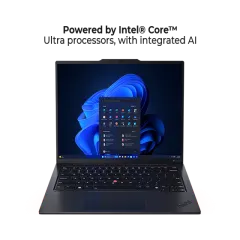
3. MacBook Pro 14” M4 Pro — Best for Power Users
The MacBook Pro 14” M4 Pro is the laptop for digital nomads whose work demands serious computational power — and who refuse to sacrifice portability to get it. Video editors, 3D artists, software engineers running Docker and multiple VMs, data scientists training models, music producers working in Logic Pro — if your livelihood depends on sustained heavy workloads, this is the only laptop on this list that handles them without flinching.
The M4 Pro chip is a genuine generational leap in mobile performance. The 12-core CPU and 16-core GPU deliver desktop-class power in a package that weighs 3.4 lbs. We edited a 45-minute 4K video project in DaVinci Resolve with color grading, noise reduction, and multiple effects layers — the kind of project that brings lesser laptops to their knees. The MacBook Pro exported the final render while we continued working in other applications. Timeline scrubbing was smooth, previews rendered in real time, and the machine barely got warm.
Battery life is absurd for a performance laptop. Apple rates it at 24 hours. Our testing with heavy mixed workloads — Xcode compiling, Docker containers, 20+ browser tabs, Slack, and Spotify — yielded 16-20 hours depending on the intensity of the tasks. Light productivity use stretched beyond 20 hours. For context, the previous generation of 14-inch MacBook Pros gave us 12-14 hours. The M4 Pro’s efficiency gains are not incremental — they are transformative.
The Liquid Retina XDR display hits 1000 nits of sustained SDR brightness and 1600 nits of peak HDR brightness. This is the only laptop on this list that remains fully readable in direct sunlight on an outdoor terrace. The XDR technology also delivers true HDR content playback, which matters if you are editing HDR video or grading photos for clients. The color accuracy (P3 wide color gamut) meets professional reference monitor standards out of the box — no calibration needed.
Port selection is the best on any Apple laptop. Three Thunderbolt 5 ports (a meaningful upgrade from Thunderbolt 4 — double the bandwidth), a full-size HDMI 2.1 port, an SDXC card slot, a MagSafe 3 charging port, and a 3.5mm headphone jack with high-impedance headphone support. You can connect two external displays, an SD card from your camera, and a wired microphone without a single adapter. For creative professionals, this port setup eliminates the hub entirely.
The trade-offs are price and weight. Starting at $1,999, it costs $700 more than the MacBook Air. At 3.4 lbs, it is marginally heavier — the difference is negligible in a backpack. The real question is whether you need the power. If your daily work is browser-based, writing, or standard web development, the MacBook Air handles it identically at $700 less. The Pro justifies its cost only when you regularly hit the Air’s performance ceiling.
The fans do spin up under sustained load — compiling large codebases, rendering video, training ML models. They are quieter than any Windows laptop’s fans at equivalent performance levels, but they are audible in a silent room. For cafe work on lighter tasks, the fans remain off.
Pros
- M4 Pro delivers desktop-class performance for video editing, development, and creative work
- 24-hour rated battery — 16-20 hours in heavy real-world use
- 1000-nit XDR display readable in direct sunlight, accurate for professional color work
- Best port selection of any Apple laptop — HDMI, SD slot, 3x Thunderbolt 5
- Handles 4K video editing, Docker, large codebases, and ML workloads without throttling
- Exceptional speakers — best on any laptop for music production and media review
- MagSafe charging plus Thunderbolt fast charge via USB-C
Cons
- Starting price of $1,999 — significant premium over the MacBook Air
- Fans spin up under sustained heavy workloads — not silent like the Air
- Overkill and overpriced for writers, marketers, and standard productivity work
- 3.4 lbs — marginally heavier than the Air but adds up with accessories
- RAM soldered — must configure at purchase (24 GB base, upgradeable to 48 GB)
- macOS only — same software limitation as the Air
Best for: Video editors, software engineers, 3D artists, music producers, data scientists, and any digital nomad whose work regularly pushes beyond what a MacBook Air or ultrabook can handle. If you have ever waited 20 minutes for a render or a build, this laptop eliminates that bottleneck.
Check MacBook Pro 14-inch M4 Pro on Amazon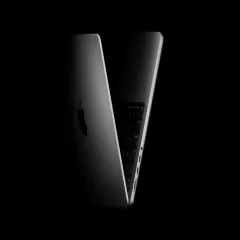
4. Framework Laptop 16 — Best Repairable
The Framework Laptop 16 exists because of a simple truth that every long-term traveler learns eventually: things break. A keyboard key pops off during a bumpy bus ride through Guatemala. A screen cracks when your backpack gets tossed by a baggage handler. A battery degrades to 60% capacity after two years of daily charge cycles in tropical heat. With every other laptop on this list, any of these failures means finding an authorized repair center — often impossible outside major cities — or shipping the machine internationally and waiting weeks.
With the Framework, you fix it yourself. In a hostel. With a screwdriver.
Every component is user-replaceable and individually purchasable. The screen, keyboard, battery, trackpad, speakers, WiFi card, RAM, storage, and even the mainboard can be swapped by the user without specialized tools. Framework sells every part directly through their marketplace. If your keyboard dies in rural Thailand, you order a replacement, it arrives in a few days, and you swap it in 10 minutes. No technician. No warranty claim. No downtime beyond shipping.
The modular expansion bay system is Framework’s most innovative feature. Six expansion card slots around the chassis accept hot-swappable modules: USB-C, USB-A, HDMI, DisplayPort, microSD, Ethernet, and additional storage. You choose which ports you want and where you want them. Heading to a presentation? Swap in an HDMI module. Need more storage for a video project? Add a 1TB expansion card. The modularity means the port configuration adapts to your work, not the other way around.
Performance is solidly mid-to-upper range. The AMD Ryzen 7 7840HS is a capable 8-core processor that handles development work, design tools, photo editing, and multitasking without issue. It does not match the M4 Pro’s efficiency or raw performance, but it runs anything a typical digital nomad needs. RAM is standard DDR5 SO-DIMM — user-upgradeable up to 64 GB — and storage is a standard M.2 NVMe slot. If you need more RAM or storage two years from now, you buy the parts and install them yourself in five minutes.
The trade-offs are weight and battery life. At 4.63 lbs (2.1 kg), the Framework 16 is by far the heaviest laptop on this list — nearly 2 lbs heavier than the ThinkPad X1 Carbon. It is a meaningful weight penalty in a daypack. Battery life of 8-10 hours in our testing is functional but below every other laptop here. The AMD processor, larger display, and modular architecture demand more power than the streamlined designs of Apple and Lenovo.
The 16-inch 2560x1600 IPS display at 500 nits is bright and sharp. The 16:10 aspect ratio provides generous vertical space for coding and document work. The build quality is good — not ThinkPad-rugged and not MacBook-premium, but solid and well-assembled. The keyboard has satisfying travel and a comfortable layout, though it does not reach ThinkPad heights.
The right-to-repair philosophy is the real selling point. Framework is the only major laptop manufacturer that actively encourages users to repair and upgrade their own machines. Every component has a repair guide. Every part is available for individual purchase. The environmental argument is compelling too — instead of replacing an entire $1,500 laptop when the battery degrades, you replace a $99 battery. The chassis is designed to last a decade with component swaps.
Pros
- Every component is user-replaceable — screen, keyboard, battery, RAM, storage, and more
- Modular expansion bays let you choose and swap ports on demand
- User-upgradeable RAM (up to 64 GB) and storage — future-proof your investment
- 500-nit 16-inch display with 16:10 aspect ratio — excellent for productivity
- Right-to-repair philosophy — parts available individually through Framework marketplace
- Environmental sustainability — upgrade components instead of replacing the entire laptop
- AMD Ryzen 7 7840HS handles all mainstream professional workloads
Cons
- Heaviest laptop on this list at 4.63 lbs — significant backpack weight penalty
- Battery life of 8-10 hours is the shortest here — outlet planning required
- Fan noise under load is noticeable in quiet spaces
- Build quality is solid but not as refined as MacBook or ThinkPad
- Framework is a smaller company — long-term part availability is a bet on their survival
- Higher price for the specs compared to traditional OEM laptops
- Not widely available in physical stores — online purchase only
Best for: Nomads who prioritize long-term value, repairability, and the ability to fix their own gear anywhere in the world. Engineers and tinkerers who appreciate modularity. Anyone philosophically aligned with right-to-repair and environmental sustainability.
Check Framework Laptop 16 on Amazon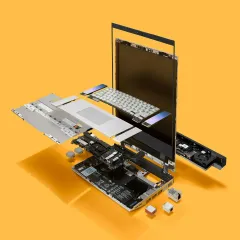
5. ASUS Zenbook 14 OLED — Best Budget
The ASUS Zenbook 14 OLED answers the question every budget-conscious nomad asks: “Can I get a genuinely good laptop for under $1,000?” Yes. Emphatically yes. The Zenbook 14 OLED delivers a stunning display, competent performance, and solid build quality at a price that undercuts the MacBook Air by $400-500.
The OLED display is the standout feature. At 2.8K resolution (2880x1800) with 600 nits of peak brightness, it is the sharpest and brightest screen on this list relative to price. OLED technology delivers perfect blacks, infinite contrast, and vivid colors that make the IPS panels on comparably priced laptops look washed out. Text rendering is razor-sharp at the 2.8K resolution, which makes a genuine difference during 8-hour writing and coding sessions. The 600-nit brightness handles sunny cafe environments better than the ThinkPad’s 400 nits.
The 120Hz refresh rate is a subtle but noticeable quality-of-life improvement. Scrolling through documents, websites, and code feels smoother and more responsive than the standard 60Hz displays on the MacBook Air and ThinkPad. It is not a must-have feature, but once you have used 120Hz for a week, 60Hz feels perceptibly laggy.
At 2.82 lbs (1.28 kg), the Zenbook 14 is lighter than the MacBook Air 15” and only marginally heavier than the ThinkPad X1 Carbon. The aluminum chassis is slim at 0.59 inches and feels more premium than its price suggests. ASUS has earned its reputation for solid build quality in the Zenbook line, and the 14 OLED continues that trend.
Performance from the Intel Core Ultra 7 155H is more than adequate for mainstream work. Web browsing with 20+ tabs, Microsoft Office, Google Workspace, Slack, Zoom, VS Code, Figma — all run smoothly. The Intel Arc integrated graphics handle light photo editing and casual gaming. It does not match the M4’s efficiency or sustained performance, but for the workloads that 80% of digital nomads actually run, the difference is imperceptible in daily use.
Battery life is the primary compromise. ASUS rates it at 13 hours. Our real-world testing yielded 9-11 hours — functional for a morning cafe session but not enough for a full outlet-free work day. The OLED display’s brightness and the Intel processor’s power draw both contribute to faster drain than the MacBook Air. Carry your charger if you plan to work beyond five hours away from an outlet.
The port selection is solid for the price class: two Thunderbolt 4 ports, one USB-A 3.2, a full-size HDMI 2.1, and a 3.5mm headphone jack. Not as comprehensive as the ThinkPad’s four USB-A ports, but meaningfully better than the MacBook Air’s two USB-C ports. You can connect a portable monitor via HDMI and a USB mouse without a hub.
The keyboard is decent but not exceptional. Key travel is adequate, the layout is standard, and the backlight has three brightness levels. It does not approach ThinkPad keyboard quality, but it handles all-day typing without causing fatigue. The trackpad is smooth and responsive with Windows Precision drivers.
Pros
- Stunning 2.8K OLED display with 600 nits — best screen quality per dollar
- 120Hz refresh rate for smoother scrolling and UI interactions
- Starting price under $900 — $400-500 less than the MacBook Air
- Lightweight at 2.82 lbs with a premium-feeling aluminum chassis
- Solid port selection — HDMI, USB-A, Thunderbolt 4, headphone jack
- Intel Core Ultra 7 handles all mainstream productivity tasks
- ASUS global warranty with service centers in most countries
Cons
- Battery life of 9-11 hours trails the MacBook Air by 4-5 hours
- OLED burn-in risk with static UI elements over long periods — mitigated by ASUS screensaver features
- Fan noise under sustained load — not as quiet as the fanless MacBook Air
- 16 GB RAM is soldered and not upgradeable — no 32 GB option on base model
- Keyboard is adequate but unremarkable compared to ThinkPad
- Windows 11 bloatware requires cleanup after initial setup
- Trackpad is smaller than MacBook's industry-leading touchpad
Best for: Budget-conscious digital nomads who want exceptional display quality without paying MacBook prices. Designers and content creators who value OLED color accuracy. Anyone entering the nomad lifestyle who needs a capable laptop without a $1,300+ investment.
Check ASUS Zenbook 14 OLED on Amazon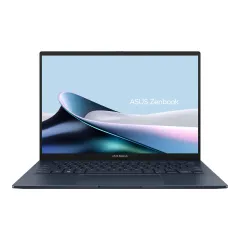
What to Actually Look For in a Nomad Laptop
Spec sheets tell you what a laptop can do. They do not tell you how well it survives the reality of nomad life. Here is what actually matters, ranked by impact on your daily work experience.
Battery Life: The Non-Negotiable
Battery life is the single most important spec for a digital nomad. Not processor speed, not display resolution, not the number of ports — battery life. Here is why: your productivity is directly limited by access to power outlets. In a coworking space with outlets at every desk, a 5-hour battery and a 15-hour battery are functionally identical. In a cafe in Oaxaca with one outlet occupied by someone else’s phone charger, the difference between 8 hours and 15 hours is the difference between finishing your work and packing up at noon.
Our recommendation: Buy the laptop with the longest battery life that meets your other requirements. Ignore manufacturer claims and look for real-world testing numbers — Apple’s claimed 18 hours translates to 14-16 in practice; Intel’s claimed 15 hours translates to 10-12.
Weight: Every Gram Counts Over Months
A 2.5 lb laptop and a 4.5 lb laptop feel identical when you pick them up at a store. After carrying one in a daypack for six months across four countries, the difference is profound. The heavier laptop strains your shoulders during long walks between cafes. It makes your bag feel overstuffed on flights. It creates a cumulative fatigue that compounds over weeks and months.
Our recommendation: Aim for under 3.5 lbs (1.6 kg) including the charger. The charger weight is the spec nobody talks about — a 140W USB-C charger weighs 0.5 lbs more than a 30W charger. MacBook Air’s MagSafe charger is the lightest in this roundup.
Screen Brightness: The Hidden Dealbreaker
Most laptop reviews test display quality in a dim room. Nomads work in bright cafes, near windows, and occasionally outdoors. A 300-nit display that looks stunning in a dark office becomes unreadable the moment sunlight hits it. You squint, you crank the brightness to maximum, your battery drains faster, and your productivity drops.
Our recommendation: Minimum 400 nits for general nomad use. 500+ nits if you regularly work near windows or in brightly lit spaces. The MacBook Pro’s 1000 nits is the only option that remains fully readable in direct sunlight.
Keyboard Quality: 8 Hours a Day, Every Day
You type on your laptop keyboard more hours than you sleep. A mediocre keyboard creates cumulative discomfort that manifests as wrist pain, finger fatigue, and reduced typing speed over weeks. A great keyboard makes work feel effortless. This is not a subjective preference — it is an ergonomic reality.
Our recommendation: Test the keyboard before committing. If you cannot test in person, prioritize laptops with established keyboard reputations: ThinkPad (best in class), MacBook (excellent), and ASUS Zenbook (solid). Avoid ultra-thin laptops with shallow key travel if you type professionally.
You can also pair any laptop with an external keyboard like the Logitech MX Keys Mini or K380 for the best of both worlds.
Port Selection: Adapters Are Single Points of Failure
Every adapter you carry is another thing to lose, forget, or break. A USB-C hub left at a coworking space in Cali costs you $30 and a trip to an electronics store. A laptop with built-in HDMI and USB-A eliminates the need for that hub entirely.
Our recommendation: At minimum, look for two USB-C/Thunderbolt ports. Ideally, add HDMI and at least one USB-A. If your laptop only has USB-C ports (MacBook Air), carry a compact USB-C hub as insurance — but treat it as a compromise, not a feature.
Repairability: What Happens When It Breaks
If your laptop screen cracks in a small city in Vietnam, your options are limited. Apple has authorized service providers in major cities but not everywhere. Lenovo’s global warranty network is broader. Framework lets you order a replacement screen and install it yourself. The repairability of your laptop directly affects your downtime risk when something goes wrong.
Our recommendation: Consider your typical destinations. If you stay in major cities with tech infrastructure (Bangkok, Lisbon, Mexico City), any brand works. If you venture to smaller towns and remote areas, prioritize brands with broader service networks (Lenovo) or self-serviceable hardware (Framework).
The Nomad Laptop Decision Tree
Still undecided? Here is the shortest path to the right choice:
- You want the best all-around nomad laptop and use macOS: MacBook Air M4 15”
- You need Windows and want the lightest, best-typing laptop: ThinkPad X1 Carbon Gen 12
- You edit video, run Docker, train models, or do heavy creative work: MacBook Pro 14” M4 Pro
- You want to fix your own laptop anywhere in the world: Framework Laptop 16
- You want the best laptop under $1,000: ASUS Zenbook 14 OLED
- You are unsure and want the safest default: MacBook Air M4 15”
Our Final Recommendation
For most digital nomads, the MacBook Air M4 15” is the right laptop. The 14-16 hour real-world battery life, fanless silence, 3.3 lb weight, and 500-nit display create a machine that works as well in a Chiang Mai cafe as it does in a London coworking space. It handles everything the majority of remote workers throw at it without complaint. It is the laptop we personally use as our daily driver, and it is the one we recommend first to every nomad who asks.
If you need Windows, buy the ThinkPad X1 Carbon. If you need raw power for professional creative work, buy the MacBook Pro 14” M4 Pro. If you are on a tight budget, the ASUS Zenbook 14 OLED delivers remarkable value. And if you want a laptop you can repair yourself anywhere on the planet, the Framework Laptop 16 is the only serious option.
Whatever you choose, pair it with the right accessories — a portable monitor, a laptop stand, a compact keyboard and mouse, and a USB-C hub — and you have a complete mobile workstation that fits in a daypack and lets you work productively from anywhere on Earth. For the full gear rundown, see our complete digital nomad tech stack guide.
Get the MacBook Air M4 15-inch on Amazon -- Our Top Pick Get the ThinkPad X1 Carbon -- Best for WindowsRelated Reading
- Complete Digital Nomad Tech Stack 2026 — Every piece of tech we carry and why
- Best Portable Monitors for Travel — Add a second screen to your setup
- Best Portable Laptop Stands — Proper ergonomics at any desk
- Best USB-C Hubs for Travel — Expand your laptop’s ports
- Best Portable Keyboards and Mice — Complete your ergonomic setup
- Digital Nomad Tech Packing List — The full gear checklist
Frequently Asked Questions
What is the best laptop for working from cafes and coworking spaces?
The MacBook Air M4 is the best laptop for cafe and coworking work. Its fanless design means zero noise in quiet spaces, the 18-hour battery eliminates outlet anxiety, and the 500-nit display stays readable in bright environments near windows. At 2.7 lbs for the 13-inch or 3.3 lbs for the 15-inch, it adds minimal weight to your daypack. The M4 chip handles web apps, writing, coding, video calls, and light creative work without breaking a sweat. For Windows users, the ThinkPad X1 Carbon offers similar portability with a better keyboard and more ports.
How much RAM do digital nomads actually need?
16 GB is the practical minimum for digital nomads in 2026. With a browser, Slack, Zoom, a code editor or design tool, and Spotify running simultaneously — a typical remote work setup — 8 GB causes noticeable slowdowns and swap usage. 16 GB handles this workload comfortably. If you regularly run virtual machines, edit video in DaVinci Resolve or Premiere Pro, work with large datasets, or keep 30-plus browser tabs open, 24 GB or 32 GB is worth the upgrade. For writers, marketers, and project managers, 16 GB is plenty.
Is a MacBook or Windows laptop better for digital nomads?
Both work well, and the best choice depends on your workflow. MacBooks offer superior battery life, a fanless design on the Air models, excellent build quality, and tight integration with iPhone and iPad. The M-series chips deliver the best performance-per-watt in the industry. Windows laptops offer more hardware variety, easier repairability, better port selection, and broader software compatibility — particularly for niche business applications. If you are a developer working with Docker or Linux, macOS has a Unix-based terminal that many prefer. If you need specific Windows-only software or want maximum hardware flexibility, go Windows.
Should I buy a laptop before leaving or in my destination country?
Buy before you leave, ideally in your home country. Warranty support is tied to your purchase region in most cases, and getting a laptop repaired under warranty in a foreign country can be difficult or impossible. Prices are generally lowest in the United States. Buying abroad also introduces risks like different keyboard layouts, unfamiliar warranty terms, and potential import tax issues if you later return home. The one exception is if your laptop dies mid-trip — in that case, buy a replacement locally and treat it as an emergency purchase rather than a planned one.
How do I protect my laptop while traveling long-term?
Use a padded laptop sleeve inside your backpack, not just the laptop compartment alone. A hard-shell case adds protection against impacts during bus rides and baggage handling. Get a screen protector to prevent scratches from keys and debris in your bag. Use a privacy screen filter in public spaces to prevent shoulder surfing. Back up everything to cloud storage — we use iCloud and a Backblaze subscription — because theft and damage are real risks on the road. Consider travel insurance that covers electronics, like SafetyWing Nomad Insurance, which covers laptops up to $500. Keep your laptop in your carry-on, never in checked luggage.
Is a Chromebook good enough for digital nomad work?
For basic tasks like email, Google Docs, web browsing, and video calls, a Chromebook works fine and costs a fraction of a traditional laptop. However, most digital nomads outgrow a Chromebook quickly. You cannot run desktop applications like VS Code, Figma desktop, Adobe Creative Suite, or most development tools natively. Offline functionality is limited. And while Linux app support has improved on ChromeOS, it is still clunky compared to a native Linux or macOS setup. If your entire workflow lives in a browser and you have reliable internet, a Chromebook is a viable budget option. For everyone else, invest in a proper laptop.
How important is screen brightness for nomad laptops?
Very important, and it is the spec most people overlook. If you work near windows, in bright cafes, or outdoors even occasionally, you need at least 400 nits of peak brightness. Anything below 300 nits becomes difficult to read in bright ambient light, forcing you to squint or find shade. The MacBook Air M4 at 500 nits and the ASUS Zenbook 14 OLED at 600 nits handle sunny environments well. The ThinkPad X1 Carbon at 400 nits is adequate. If you frequently work outdoors or near large windows, prioritize brightness alongside battery life — they are the two specs that most directly impact where you can work.