Best USB-C Hubs for Travel 2026: Portable Docks for Digital Nomads
We tested 8 USB-C hubs across cafes, Airbnbs, and coworking spaces worldwide. The best portable docks for MacBook, Windows laptops, and remote work setups.
Your MacBook Air has two USB-C ports. Your charger needs one. That leaves a single port for everything else — and “everything else” includes your portable monitor, a USB drive with client files, an SD card full of photos, and the ethernet cable you need for a stable Zoom call in an Airbnb with questionable WiFi.
This is the reality of modern laptop design. Apple, Dell, and Lenovo have trimmed ports down to the bare minimum, betting that a $20-50 adapter will fill the gaps. They are right — but only if you pick the right one.
After testing eight USB-C hubs across coworking spaces in Chiang Mai, cafes in Lisbon, Airbnbs in Mexico City, and hotel rooms in Tokyo, we found massive differences in build quality, heat management, port speeds, and real-world reliability. Some hubs worked flawlessly for months. Others dropped HDMI signal mid-presentation, ran hot enough to worry about, or quietly capped charging at 30W instead of the advertised 85W.
Here are the USB-C hubs that actually survived months of nomad life — and the ones worth your money.
Quick Comparison: Best USB-C Hubs for Travel
| Feature | Anker 555 (8-in-1) | Anker 341 (7-in-1) | UGREEN Revodok Pro 107 | CalDigit SOHO Dock | Satechi V3 (8-in-1) | Hiearcool (7-in-1) |
|---|---|---|---|---|---|---|
| Ports | 8-in-1 | 7-in-1 | 7-in-1 | 8 ports | 8-in-1 | 7-in-1 |
| HDMI Output | 4K@60Hz | 4K@30Hz | 4K@60Hz | 4K@60Hz | 8K@30Hz / 4K@120Hz | 4K@30Hz |
| PD Pass-through | 85W | 85W | 100W | 90W | 85W | 100W |
| USB-A Ports | 2x 10Gbps | 2x 5Gbps | 2x 10Gbps | 1x 10Gbps | 2x 10Gbps | 2x 5Gbps |
| SD Card | SD + microSD | SD + microSD | SD + microSD | SD + microSD (UHS-II) | SD (UHS-II) | SD + microSD |
| Ethernet | 1 Gbps | No | No | No | 1 Gbps | No |
| Weight | 4.4 oz | 2.8 oz | 3.5 oz | 3.0 oz | 4.0 oz | 2.4 oz |
| Price | ~$50 | ~$30 | ~$30 | ~$70 | ~$100 | ~$18 |
| Our Pick | Best Overall | Best Budget | Best Value | Best for MacBook | Best Premium | Best Under $20 |
| Visit Anker 555 (8-in-1) | Visit Anker 341 (7-in-1) | Visit UGREEN Revodok Pro 107 | Visit CalDigit SOHO Dock | Visit Satechi V3 (8-in-1) | Visit Hiearcool (7-in-1) |
How We Tested
We evaluated each USB-C hub on the criteria that matter for travel and remote work — not synthetic benchmarks, but the things you actually deal with when setting up at a cafe table in Bangkok or plugging into a conference room projector:
- HDMI reliability. Does the hub output a stable signal to portable monitors, hotel TVs, and coworking space projectors? Does it drop signal or flicker during extended use?
- Power Delivery pass-through. Does it actually deliver the advertised wattage? We measured real-world charging rates to catch hubs that cap PD lower than claimed.
- Heat management. How hot does the hub get after two hours of simultaneous HDMI output, PD charging, and USB data transfer? Overheating hubs throttle performance and shorten lifespan.
- Build quality and cable strain. The USB-C connector takes abuse in travel bags. We looked for reinforced cables, metal housings, and connectors that do not wobble.
- SD card and USB speeds. Are the stated transfer speeds real, or does the hub bottleneck on cheap internal controllers?
- Size and weight. It has to fit in a tech pouch alongside cables, chargers, and adapters without adding noticeable bulk.
Every hub was tested with a MacBook Air M3, a ThinkPad X1 Carbon Gen 12, and a Samsung Galaxy S24 Ultra over a minimum of six weeks of daily use.
Best USB-C Hubs for Travel
1. Anker 555 USB-C Hub (8-in-1) — Best Overall
The Anker 555 is the USB-C hub we recommend to most digital nomads, and the one we keep in our own travel kit. It hits the exact sweet spot of ports, size, speed, and price that makes it the universal answer for “which hub should I get?”
At 8-in-1, it includes every port you actually need on the road: 4K@60Hz HDMI for smooth external monitor output, two USB-A 3.2 ports at 10Gbps for fast file transfers and peripherals, a USB-C 3.2 data port at 10Gbps, gigabit ethernet for wired connections in Airbnbs, both SD and microSD card readers, and 85W USB-C PD pass-through for charging your laptop while using everything else.
The 4K@60Hz HDMI output is a genuine upgrade over the cheaper 4K@30Hz hubs. If you connect a portable monitor or present on a 4K TV, 60Hz is noticeably smoother for scrolling, cursor movement, and video playback. At 30Hz, everything feels slightly laggy — fine for static documents, annoying for real work.
Build quality is excellent for the price. The aluminum housing dissipates heat well — after two hours of simultaneous HDMI, PD, and USB use, the Anker 555 was warm but never uncomfortably hot. The braided cable feels durable and has held up to daily bag packing without fraying.
At 4.4 ounces and just 0.6 inches thick, it slides into any tech organizer without adding meaningful weight.
Pros
- True 4K@60Hz HDMI -- smooth output for monitors and presentations
- 10Gbps USB-A and USB-C ports -- fast file transfers
- Gigabit ethernet -- rare at this size and price
- 85W PD pass-through charges most laptops at full speed
- SD and microSD card readers included
- Excellent heat management in aluminum housing
- Anker's 18-month warranty and established support
Cons
- Slightly heavier than 7-in-1 alternatives at 4.4 oz
- No DisplayPort output -- HDMI only
- Cable length is short (about 6 inches) -- limits placement options
- 85W pass-through means a 100W charger only delivers 85W to the laptop
Best for: Most digital nomads. If you only buy one hub, this is the one. The ethernet port alone justifies the small premium over the Anker 341.
Check Anker 555 on Amazon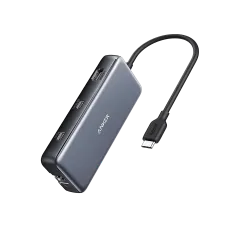
2. UGREEN Revodok Pro 107 (7-in-1) — Best Value
The UGREEN Revodok Pro 107 punches above its weight class. For roughly the same price as the Anker 341, you get 10Gbps ports and 4K@60Hz HDMI — specs that usually cost $15-20 more.
The port lineup includes HDMI 4K@60Hz, a USB-C 3.2 data port at 10Gbps, two USB-A 3.2 ports at 10Gbps, SD and microSD card readers, and USB-C PD pass-through supporting up to 100W input. That 100W PD rating is the highest on this list for a compact hub — your charger passes through with minimal loss, delivering roughly 85-90W to the laptop.
UGREEN’s build quality has been consistently strong across their product line, and the Revodok Pro 107 continues that trend. The aluminum housing is solid, the cable has reinforced strain relief, and the hub runs cool even under sustained load. PCWorld named the UGREEN Revodok Pro lineup as their top recommendation for most users in their 2026 roundup.
The only meaningful sacrifice compared to the Anker 555 is the lack of an ethernet port. If you rely on wired connections — and if you take video calls from Airbnbs with unpredictable WiFi, you should — the Anker 555’s ethernet port is worth the extra cost. For everyone else, the UGREEN delivers premium specs at a budget price.
Pros
- 10Gbps USB-C and USB-A ports at a budget price
- True 4K@60Hz HDMI output
- 100W PD input -- highest pass-through on this list
- Solid aluminum build with reinforced cable
- Excellent price-to-spec ratio
- PCWorld-recommended brand for USB-C hubs
Cons
- No ethernet port -- need a separate adapter for wired connections
- No microSD slot in some variants -- verify the model
- Less established warranty support compared to Anker
- Short cable length similar to most competitors
Best for: Budget-conscious nomads who want 10Gbps speeds and 4K@60Hz without paying $50+. The best specs-per-dollar on this list.
Check UGREEN Revodok Pro 107 on Amazon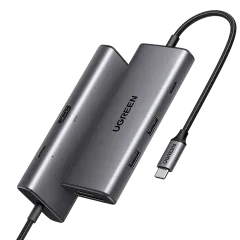
3. Anker 341 USB-C Hub (7-in-1) — Best Budget
The Anker 341 is one of the best-selling USB-C hubs on Amazon for a reason: it does exactly what most people need, costs about $30, and comes with Anker’s reputation for reliability. If you want a proven, safe choice at a budget price, this is it.
The 7-in-1 port layout includes HDMI at 4K@30Hz, a USB-C data port, two USB-A ports, SD and microSD card readers, and USB-C PD pass-through at 85W. The ports run at 5Gbps — fine for everyday file transfers, USB peripherals, and SD card reading, though slower than the 10Gbps ports on the UGREEN and Anker 555.
At 2.8 ounces, the Anker 341 is one of the lightest hubs on this list. It is noticeably smaller than the 8-in-1 models, making it the hub you toss in a jacket pocket or the front pouch of a backpack without a second thought.
The 4K@30Hz HDMI limitation is the primary trade-off. For static work — documents, code, email — 30Hz is perfectly fine. For scrolling, video playback, or cursor-intensive work, 60Hz is noticeably smoother. If you mostly work on text, the Anker 341 is all you need. If you frequently use an external monitor for design or media work, spend the extra $20 on the Anker 555 or UGREEN.
Pros
- Extremely lightweight at 2.8 oz -- barely noticeable in a bag
- Reliable 85W PD pass-through for laptop charging
- SD and microSD card readers
- Anker's trusted build quality and 18-month warranty
- One of the most popular and best-reviewed hubs on Amazon
- Simple, compact design that fits in a jacket pocket
Cons
- 4K@30Hz HDMI -- noticeable lag for scrolling and video vs 60Hz
- 5Gbps USB ports -- half the speed of the UGREEN and Anker 555
- No ethernet port
- Plastic housing instead of aluminum
Best for: Nomads who want proven reliability at the lowest price from a trusted brand. Ideal if your hub use is occasional rather than daily.
Check Anker 341 on Amazon
4. CalDigit USB-C SOHO Dock — Best for MacBook Users
The CalDigit SOHO Dock is the hub that Mac-focused publications like 9to5Mac and MacWorld consistently recommend, and after months of use with a MacBook Air, we understand why. It is built specifically around the way Apple users work.
What sets the SOHO Dock apart is port quality over port quantity. You get HDMI 2.0b and DisplayPort 1.4 (both at 4K@60Hz), a 10Gbps USB-C data port, a 10Gbps USB-A data port, UHS-II SD and microSD card readers, and 90W PD pass-through. The UHS-II card readers are a standout feature — they transfer data at up to 312 MB/s, roughly three times faster than the UHS-I readers on every other hub in this list. Photographers and videographers who offload cards regularly will notice the difference immediately.
The DisplayPort 1.4 output is rare at this size and price. If you use a USB-C or DisplayPort monitor rather than HDMI, the CalDigit connects directly without an adapter. Having both HDMI and DisplayPort means you can connect to virtually any external display you encounter.
CalDigit builds to a higher standard than most hub manufacturers. The SOHO Dock weighs just 3 ounces, uses an aluminum housing that matches MacBook aesthetics, and the USB-C cable has generous strain relief. The company has been making professional-grade Mac peripherals for over a decade.
Pros
- Both HDMI 2.0b and DisplayPort 1.4 -- connects to any monitor type
- UHS-II card readers (312 MB/s) -- 3x faster than UHS-I
- 90W PD pass-through -- highest for a compact dock on this list
- 10Gbps USB-C and USB-A data ports
- Premium aluminum build matches MacBook aesthetics
- Lightweight at just 3 oz with compact form factor
Cons
- Only one USB-A port -- need an adapter for multiple USB-A peripherals
- Higher price than similarly-ported alternatives at ~$70
- No ethernet port -- need a separate adapter for wired connections
- Discontinued by CalDigit but still widely available on Amazon
Best for: MacBook users who value build quality, UHS-II card speeds, and dual display outputs (HDMI + DisplayPort). Photographers and content creators will especially appreciate the fast card readers.
Check CalDigit SOHO Dock on Amazon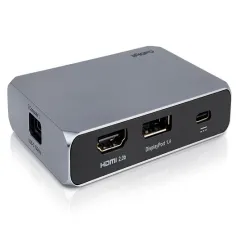
5. Satechi Multiport Adapter V3 (8-in-1) — Best Premium
The Satechi Multiport Adapter V3 is the hub you buy when you want the absolute best specs in a portable form factor and do not mind paying for it. At roughly $100, it is the most expensive hub on this list — but it is also the most capable.
The headline feature is 8K@30Hz HDMI output, which also means 4K@120Hz and 4K@60Hz on compatible displays. This is the only hub on our list that can drive a high-refresh-rate 4K monitor at its full potential. For nomads who use a 4K@120Hz portable monitor or connect to high-end displays at coworking spaces, the V3 delivers where cheaper hubs cannot.
All four USB data ports support USB 3.2 Gen 2 at 10Gbps. The UHS-II SD card reader matches the CalDigit for fast card offloading. Gigabit ethernet is included. And 85W PD pass-through keeps your laptop charged while everything else is connected.
Satechi’s brushed aluminum finish is the most MacBook-matching aesthetic on this list — it genuinely looks like an Apple accessory. The build quality is impeccable, with zero flex, zero wobble, and a cable that feels overbuilt in the best way.
The V3 is overkill for nomads who connect to basic 1080p or 4K@60Hz monitors. The Anker 555 delivers 90% of the experience at half the price. But if you connect to high-end displays or transfer large files daily, the V3 is the only hub here that will not bottleneck you.
Pros
- 8K@30Hz / 4K@120Hz HDMI -- best display output on any travel hub
- 10Gbps across all four USB data ports
- UHS-II SD card reader for fast media offloading
- Gigabit ethernet included
- Premium brushed aluminum build matches MacBook design language
- Three color options: Space Gray, Silver, Midnight
Cons
- Highest price on this list at ~$100
- No microSD card reader -- SD only
- 85W PD pass-through is lower than UGREEN's 100W and CalDigit's 90W
- Overkill for basic 4K@60Hz or 1080p monitor use
Best for: Power users, content creators, and professionals who connect to high-refresh-rate displays and need the fastest ports available. Worth the premium if you use external displays daily.
Check Satechi V3 on Amazon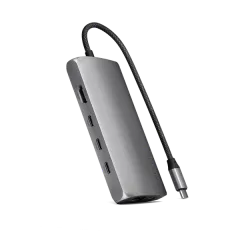
6. HyperDrive Next 6-in-1 — Best Compact
The HyperDrive Next 6-in-1 is for nomads who want fast ports in the smallest possible package. At just six ports, it strips away everything non-essential and focuses on doing fewer things extremely well.
You get HDMI at 4K@60Hz, a USB-C 3.2 data port at 10Gbps, two USB-A 3.2 ports at 10Gbps, an SD card reader, and 100W PD pass-through with up to 85W delivered to the laptop. No ethernet, no microSD, no redundant ports. Just the core ports at maximum speed.
What makes the HyperDrive compelling is the build. The metal enclosure has a thick woven cable with a built-in holster that clips over the USB-C connector during travel. This small detail solves one of the biggest annoyances with USB-C hubs — the exposed connector getting bent or snagged in a bag. After six weeks of tossing it into a backpack daily, the cable and connector showed zero wear.
The SD card reader supports speeds up to 312 MB/s (UHS-II), matching the CalDigit and Satechi for fast photo offloading. For a 6-port hub, the HyperDrive punches well above its port count.
Pros
- Excellent build quality with woven cable and connector holster
- 10Gbps on all USB data ports
- 4K@60Hz HDMI output
- Fast UHS-II SD card reader (312 MB/s)
- 100W PD input with 85W to laptop
- Smallest footprint on this list
Cons
- Only 6 ports -- no ethernet, no microSD, fewer USB-A ports
- Price is higher per port than the Anker 555 or UGREEN
- No microSD reader -- need an adapter for microSD cards
- Less widely reviewed than Anker and UGREEN hubs
Best for: Minimalist travelers who want premium speed and build quality in the smallest possible form factor. Ideal if you only need HDMI, USB, SD, and charging.
Check HyperDrive Next 6-in-1 on Amazon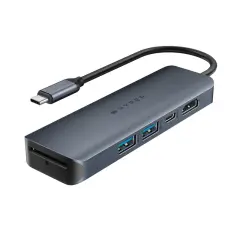
7. Hiearcool 7-in-1 USB-C Hub — Best Under $20
The Hiearcool 7-in-1 is the cheapest USB-C hub on this list that we can genuinely recommend. At roughly $18, it costs less than a meal in most airports — and it does the job.
The port lineup mirrors the Anker 341: HDMI at 4K@30Hz, two USB-A 3.0 ports, SD and microSD card readers, and USB-C PD pass-through supporting up to 100W. The aluminum shell weighs just 2.4 ounces, making it the lightest hub we tested.
We used the Hiearcool for three months as a backup hub, pulling it out whenever our primary hub was in a checked bag or when we needed a second hub for a travel companion. It connected reliably to MacBooks, ThinkPads, and Samsung phones. HDMI output was stable. Card readers worked. PD pass-through charged our MacBook Air without issues.
The trade-offs are exactly what you expect at this price. The cable feels thinner and less durable than Anker’s. The ports fit slightly looser. And the 5Gbps USB speeds are noticeably slower for large file transfers. But for plugging in a monitor, a USB drive, and keeping your laptop charged? It works.
With over 60,000 reviews and a 4.5-star average on Amazon, the Hiearcool has proven itself through sheer volume of real-world use.
Pros
- Incredible value at ~$18
- Ultralight at 2.4 oz -- lightest hub on this list
- 60,000+ Amazon reviews with 4.5-star average
- 100W PD pass-through for laptop charging
- SD and microSD card readers included
- Compact aluminum shell fits in any pocket
Cons
- 4K@30Hz HDMI -- choppy for scrolling and video
- 5Gbps USB ports -- slower than 10Gbps competitors
- Thinner cable raises durability concerns for daily heavy use
- Ports fit slightly looser than premium hubs
- Gets warm under sustained load
Best for: Budget travelers, backup hub duty, or anyone who wants to test whether a USB-C hub improves their workflow before investing in a pricier option.
Check Hiearcool on Amazon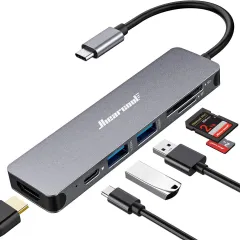
USB-C Hub Buying Guide
If you are still deciding, here is how to think about the specs that actually matter for travel use.
HDMI: 4K@30Hz vs 4K@60Hz
This is the single most impactful spec difference between budget and mid-range hubs. 4K@30Hz refreshes the screen 30 times per second — static content looks fine, but scrolling, cursor movement, and video playback feel laggy and stuttery. 4K@60Hz feels smooth and natural, matching what you are used to on your laptop’s built-in display.
If you use an external monitor for more than occasional presentations, 4K@60Hz is worth the extra $10-15. If you only occasionally plug into a hotel TV or conference room projector, 4K@30Hz is adequate.
Power Delivery Pass-Through
PD pass-through lets you charge your laptop through the hub while using all its ports. The hub itself consumes 10-15W for operation, so the wattage your laptop actually receives is lower than your charger’s rated output.
- 100W input = roughly 85-90W to your laptop
- 85W input = roughly 70-75W to your laptop
- 60W input = roughly 45-50W to your laptop
For a MacBook Air (30W charger) or ultrabook, even 60W pass-through is plenty. For a MacBook Pro 16-inch (140W charger) or gaming laptop, look for 100W input to keep up with demand during heavy workloads.
USB Port Speeds: 5Gbps vs 10Gbps
5Gbps (USB 3.0/3.1 Gen 1) is fine for peripherals like mice, keyboards, and thumb drives. File transfers will max out around 500 MB/s in practice. 10Gbps (USB 3.2 Gen 2) doubles the theoretical bandwidth and matters if you regularly transfer large files — video footage, photo libraries, or software builds — to external drives.
For most nomads doing standard office work, 5Gbps is sufficient. For content creators and developers, 10Gbps is a worthwhile upgrade.
Ethernet: When You Need It
A gigabit ethernet port is the difference between a reliable video call and a choppy, laggy disaster in an Airbnb with weak WiFi. If you take video calls regularly, prioritize a hub with ethernet. The Anker 555 and Satechi V3 include it. For all other hubs, you can add a separate USB-C to ethernet adapter for $10-15 — or connect through a travel router that provides both ethernet and WiFi management.
Heat Management
USB-C hubs generate heat, especially when simultaneously outputting HDMI, charging via PD, and transferring data. Aluminum housings dissipate heat far better than plastic ones. Overheating causes performance throttling (HDMI dropping signal, USB speeds plummeting) and shortens the hub’s lifespan.
During our testing, aluminum hubs (Anker 555, UGREEN, CalDigit, Satechi) stayed warm but manageable. The plastic-housed Anker 341 and Hiearcool ran noticeably hotter under sustained load. If you use your hub for hours at a time, prioritize aluminum construction.
The Perfect Travel Desk Setup
A USB-C hub is the foundation of a portable workstation, but it shines brightest when paired with the right accessories. Here is the setup we use:
- USB-C hub (this article) — connects everything through one port
- Portable monitor — dual screens boost productivity up to 42%
- Laptop stand — raises your screen to eye level for ergonomic posture
- External keyboard and mouse — plugged into the hub’s USB-A ports
- Tech organizer — keeps the hub, cables, and adapters from becoming a tangled mess
The entire setup fits in a standard backpack and sets up in under two minutes. Connect the hub to your laptop, plug the monitor into HDMI, plug the charger into PD pass-through, and you have a full dual-screen workstation anywhere in the world.
For the complete list of gear we travel with, including laptops, power banks, travel routers, and every other piece of tech in our bags, check our full digital nomad packing list.
Our Final Recommendation
For most digital nomads, we recommend the Anker 555 (8-in-1) as the best overall USB-C hub for travel. At roughly $50, you get 4K@60Hz HDMI, 10Gbps USB ports, gigabit ethernet, card readers, and 85W charging — everything you need in a single, well-built adapter. The ethernet port alone justifies the price for anyone who takes video calls from variable WiFi connections.
If you want the best value, the UGREEN Revodok Pro 107 delivers 10Gbps speeds and 4K@60Hz for roughly $30 — the most capable hub at the budget price point.
If you are on a strict budget, the Hiearcool 7-in-1 at $18 is a safe, well-reviewed entry point that covers all the basics.
Buy the Anker 555 on Amazon -- Our Top PickFrequently Asked Questions
Do I need a USB-C hub for travel?
If your laptop has limited ports, a USB-C hub is essential. The MacBook Air has just two USB-C ports -- one for charging, leaving you a single port for everything else. A hub lets you connect an external monitor via HDMI, plug in a USB drive, use a wired ethernet connection for stable video calls, and transfer photos from an SD card -- all while charging your laptop through pass-through power delivery. Even well-ported Windows laptops benefit from a hub in Airbnbs and coworking spaces where you need to quickly connect to a monitor or projector. At $20 to $50 for a good one, a USB-C hub is one of the cheapest productivity upgrades you can make.
USB-C hub vs docking station -- what is the difference?
USB-C hubs are small, lightweight (2 to 5 ounces), and typically offer 5 to 8 ports powered entirely by your laptop. They are designed for portability and quick setups. Docking stations are larger, often have their own power supply, and can support dual or triple monitors with 10 to 14+ ports. For travel, a hub is the right choice -- it fits in a pocket and sets up in seconds. For a permanent home desk, consider a docking station like the Anker Prime or CalDigit TS4 that can drive multiple displays and charge your laptop at full speed simultaneously.
Can a USB-C hub charge my laptop?
Most quality USB-C hubs support Power Delivery (PD) pass-through charging. This means you plug your USB-C charger into the hub's PD port, and it charges your laptop through the hub while you use all the other ports. Look for at least 60W PD pass-through -- the hub itself uses 10 to 15W for operation, so a 100W charger passing through a hub typically delivers 85W to your laptop. Every hub on our list supports PD pass-through, but cheaper no-name hubs sometimes skip this feature or limit it to 30W, which is too slow for most laptops.
Will a USB-C hub work with my MacBook?
Yes, all modern MacBooks from 2018 onward work with USB-C hubs. Every Apple Silicon MacBook (M1 through M4) supports USB-C hubs for HDMI output, USB peripherals, SD cards, and charging pass-through. One caveat: M1 and M2 MacBook Air models natively support only one external display -- if you need dual monitors, you will need a hub with DisplayLink or InstantView technology. The M3 and M4 MacBook Air models support two external displays with the lid closed. MacBook Pro 14-inch and 16-inch models support multiple displays natively through any USB-C hub.
What ports should I look for in a travel USB-C hub?
At minimum, you want HDMI (for external monitors and hotel TVs), at least one USB-A port (for flash drives, mice, and older peripherals), and USB-C PD pass-through (for charging while using the hub). The sweet spot for travel is a 7-in-1 or 8-in-1 hub that adds SD and microSD card readers plus either ethernet or a second USB-A port. Skip 4-in-1 hubs -- they are too limited. Skip 11-in-1 and above -- they add bulk, heat, and ports you rarely need on the road. A 7-in-1 covers 95 percent of real-world travel scenarios.
Do cheap USB-C hubs work well?
Budget hubs in the $15 to $25 range work fine for basic port expansion. The main trade-offs are build quality, heat management, and PD pass-through wattage. Cheaper hubs tend to run hotter during extended use, may limit HDMI to 4K at 30Hz instead of 60Hz, and sometimes cap USB data transfer at 5Gbps instead of 10Gbps. Avoid no-name brands under $10 -- they may not properly negotiate PD charging, could have inconsistent HDMI output, or might damage your laptop's USB-C port with poor shielding. Anker, UGREEN, and Hiearcool budget options are all safe choices with proper certifications.