Best iPad Accessories for Travel 2026: 10 Must-Haves
The best iPad accessories for travel and remote work — tested keyboards, cases, stands, pencils, hubs, and more for digital nomads using iPad as a laptop replacement.
Quick picks: Best keyboard case: Apple Magic Keyboard ($299) — unmatched typing feel and trackpad. Best budget keyboard: Logitech Combo Touch ($180) — detachable, kickstand, backlit. Best case: ESR Rebound Trifold ($22) — magnetic, slim, affordable. Best stylus: Apple Pencil Pro ($129).
The iPad has crossed a threshold. With Apple Silicon chips, a full-size trackpad on the Magic Keyboard, Stage Manager multi-window support, and a growing library of pro-grade apps, the iPad Air and iPad Pro are genuine working computers for a significant portion of remote workers.
The catch: out of the box, iPad is optimized for consumption, not production. The right accessories close that gap completely. A keyboard case, a stand, a hub, and a Pencil turn a $599 tablet into a sub-1 kg workstation that outperforms many laptops on battery life and portability.
We have used iPads as primary travel work machines across dozens of countries — cafes in Chiang Mai, coworking spaces in Lisbon, hostels in Medellín, and overnight trains across Europe. Here is what actually earns its place in the bag.
Planning a trip? Our Indonesia internet guide and Thailand internet guide cover connectivity so you can confirm your iPad setup works at your destination before you arrive. And pair your iPad with a solid travel VPN — public WiFi at airports, cafes, and coworking spaces is a genuine security risk.
Quick Picks by Category
| Category | Top Pick | Price |
|---|---|---|
| Keyboard (premium) | Apple Magic Keyboard | ~$299 |
| Keyboard (budget) | Logitech Combo Touch | ~$180 |
| Case | ESR Rebound Magnetic Trifold | ~$22 |
| Stylus | Apple Pencil Pro | ~$129 |
| Stand | Lamicall Adjustable Tablet Stand | ~$18 |
| USB-C Hub | Anker 541 iPad Hub (6-in-1) | ~$36 |
| Screen Protector | Paperlike 2.1 Matte | ~$40 |
| External SSD | SanDisk 1TB Portable SSD | ~$80 |
| Earbuds | Apple AirPods Pro 2 | ~$179 |
| Power Bank | Anker 10,000mAh 30W | ~$28 |
How We Tested
We evaluated each accessory against five criteria specific to the nomad-with-iPad use case:
- Portability. Does it add noticeable weight or volume to a daypack? Does it require its own case or pouch?
- Setup speed. How quickly can you go from bag to working? Accessories requiring cable threading, Bluetooth pairing, or complicated attachment mechanisms waste time.
- iPad-specific compatibility. Does it work correctly with iPadOS — Stage Manager, Pencil hover, Smart Connector charging, USB-C bandwidth limits?
- Durability. Does it survive daily pack-and-unpack cycles? Hinges, magnetic connectors, and screen protectors are the first things to fail.
- Value. Is the price proportionate to the benefit delivered? A $300 keyboard case needs to meaningfully improve the work experience, not just look good in a flat lay.
1. Apple Magic Keyboard — Best iPad Keyboard Overall
The Apple Magic Keyboard for iPad is the accessory that most convincingly completes the laptop-replacement argument. Attach it magnetically and the iPad clicks into a floating cantilever design that adjusts to any viewing angle with satisfying firmness. The large glass trackpad supports every iPadOS gesture. The scissor-switch keyboard delivers key feel and travel that rivals a MacBook — significantly better than any third-party iPad keyboard.
Pass-through USB-C charging means you charge the iPad through the keyboard, keeping the iPad’s port free for a hub or external drive while you work. The Magic Keyboard itself draws power from the iPad via the Smart Connector — no battery to charge, no Bluetooth pairing.
The weight reality: Adding a Magic Keyboard to an iPad Air 11-inch (469g) brings the combined weight to roughly 1.05 kg — comparable to a MacBook Air. If you want an ultralight tablet for travel days, remove the keyboard and use the ESR case below. The Magic Keyboard’s value is as a desk/coworking accessory, not an in-flight companion.
Compatibility note: The Magic Keyboard is model-specific. The 11-inch version fits iPad Air (M2, M3, M4) and iPad Pro 11-inch (1st through 4th gen). The 13-inch fits iPad Air 13-inch and iPad Pro 12.9-inch (3rd gen and later). The 2024/2025 iPad-only redesign (with function row) is NOT backwards compatible with older iPad Pro models.
Pros
- Best keyboard feel of any iPad accessory — rivals MacBook
- Large glass trackpad with full iPadOS gesture support
- Pass-through USB-C charging keeps iPad port free
- No battery needed — Smart Connector powers keyboard
- Adjustable floating cantilever design is rock-solid at any angle
Cons
- Expensive — $299 for 11-inch, $349 for 13-inch
- Adds ~580g — combined system weighs as much as a laptop
- No backlight adjustment on standard model
- Model-specific — must buy the right version for your iPad

2. Logitech Combo Touch — Best Detachable Keyboard Case
The Logitech Combo Touch solves the problem the Magic Keyboard does not: versatility. Where the Magic Keyboard is either attached or detached, the Combo Touch’s kickstand design supports four modes — laptop (keyboard attached), stand (tablet upright, keyboard folded under), sketch (keyboard flipped back, screen tilted for drawing), and tablet (keyboard detached entirely).
The detachable backlit keyboard connects via Logitech’s Smart Connector — no Bluetooth pairing, no battery — and features full-size keys with 1.5mm key travel and a trackpad that, while smaller than the Magic Keyboard’s, supports all standard iPadOS gestures. Backlighting with four levels of brightness is a genuine edge over the Magic Keyboard in dark cafe corners.
The kickstand difference: The Combo Touch’s kickstand lets you prop the iPad at a consistent angle without the keyboard being physically in front of the screen. Plug an external monitor into a USB-C hub, kick the iPad up in stand mode, and use the detached keyboard wirelessly for a genuinely multi-monitor setup — something the Magic Keyboard cannot do cleanly.
Key feel trade-off: The Combo Touch types adequately but not brilliantly. The keys are slightly spongier than the Magic Keyboard and the trackpad requires more deliberate taps. For writers and developers who type 6+ hours daily, the Magic Keyboard’s tactile superiority justifies the price difference. For mixed workflows — video calls, browsing, spreadsheets, light writing — the Combo Touch does everything needed at $120 less.
Pros
- Four-mode versatility: laptop, stand, sketch, tablet
- Backlit keyboard — four brightness levels
- Kickstand enables any-angle positioning independently of keyboard
- Smart Connector — no Bluetooth pairing, no keyboard battery
- Comes with protective case for iPad back and edges
Cons
- Key feel is adequate but not exceptional
- Smaller trackpad than Magic Keyboard
- Bulkier overall profile when keyboard is attached
- Must buy model-specific version — check your iPad generation

Keyboard Comparison: Magic Keyboard vs. Combo Touch
| Feature | Apple Magic Keyboard (11") | Logitech Combo Touch (11") |
|---|---|---|
| Key feel | Excellent — scissor switch | Good — 1.5mm travel |
| Trackpad | Large glass, full gesture | Medium, multi-touch |
| Backlit | Yes | Yes — 4 levels |
| Modes | Laptop only | Laptop / Stand / Sketch / Tablet |
| Keyboard battery | None (Smart Connector) | None (Smart Connector) |
| Pass-through charging | Yes (USB-C) | No |
| Weight added | ~581g | ~495g |
| Price | ~$299 | ~$180 |
| Visit Apple Magic Keyboard (11") | Visit Logitech Combo Touch (11") |
3. ESR Magnetic Trifold Case — Best Slim Case
The ESR Rebound Magnetic Trifold Case is the case we use on travel days when the Magic Keyboard stays in the bag. At roughly $22, it is one-tenth the price of the Magic Keyboard and adds genuine protection without meaningful weight penalty.
The magnetic attachment is strong — the case clicks to the iPad with a satisfying snap and does not flex or shift during normal use. The trifold design opens to three positions: fully flat (cover mode), 45° (browsing/viewing), and 65° (video calls and typing with an external keyboard). The cover auto-wakes the iPad when opened and sleeps it when closed.
Apple Pencil compatibility: The ESR Trifold supports Pencil Pro and Pencil USB-C magnetic attachment along the top edge — the Pencil clicks on and charges through the case without removing it. This is essential. Cases that require you to remove them to attach the Pencil get abandoned within a week.
At $22, this is a no-brainer add for anyone with a Magic Keyboard: keep the Magic Keyboard at the desk, use the ESR case for cafe days and travel.
Pros
- Excellent value at around $22
- Strong magnetic attachment — no flex or shift
- Apple Pencil Pro compatible with through-case charging
- Auto wake/sleep
- Slim and lightweight — minimal weight addition
Cons
- Trifold angles are fixed — no infinite angle adjustment
- No keyboard integration or pass-through charging
- Plastic back may scratch over time
- Limited color options

4. Apple Pencil Pro — Best iPad Stylus
The Apple Pencil Pro is not a luxury accessory if you use your iPad for note-taking, annotation, or any form of visual work. It is a functional requirement that transforms a glass surface into a precision input device.
The Pencil Pro’s headline feature over previous generations is barrel roll — rotating the Pencil changes the orientation of calligraphy brushes, highlighters, and angle-sensitive tools in real time. Paired with the squeeze gesture (squeeze the Pencil’s flat side to switch tools without touching the screen), it eliminates the workflow interruption of reaching up to tap the toolbar mid-stroke.
Hover preview shows a cursor preview on-screen before the Pencil tip touches the glass — useful for precision placement in design apps and for seeing where your stroke will start before committing. Find My support means if you leave the Pencil in a cafe, there is at least a chance of locating it.
The Pencil Pro charges and pairs magnetically via the iPad’s flat edge — snap it on and it charges without cables or caps. It works with iPad Pro 11-inch (M4 and later), iPad Pro 13-inch (M4 and later), iPad Air 11-inch (M2 and later), and iPad Air 13-inch (M2 and later).
For the budget-conscious: The Apple Pencil USB-C ($79) works with a broader range of iPads, has tilt sensitivity, and pixel-perfect precision for annotations and note-taking. It lacks barrel roll, squeeze gesture, and hover — which matter for artists but less so for note-takers.
Pros
- Barrel roll changes brush orientation in real time
- Squeeze gesture switches tools without lifting hand
- Hover preview before tip touches screen
- Magnetic attach and charge — no cables
- Find My support
Cons
- Only compatible with iPad Pro M4+ and iPad Air M2+
- Expensive at $129
- Easy to forget on a desk or leave in cafes
- No eraser end

5. Lamicall Adjustable Tablet Stand — Best iPad Stand
The Lamicall Adjustable Tablet Stand solves the scenario where you want to use your iPad with an external keyboard and have it at eye level — without carrying a bulkier, heavier laptop stand. At around $18 and roughly 200g, it adds minimal weight for a meaningful ergonomic improvement.
The aluminum alloy construction with rubber feet holds the iPad steady at desk height without wobble. The angle adjusts through roughly 100 degrees — from nearly flat to near-vertical — accommodating keyboard use, video calls, and media watching equally well. A silicone cradle grips the iPad without scratching and accommodates cases up to about 14mm thick, which covers most slim cases including the ESR Trifold.
The travel use case: Pair the Lamicall with a Logitech K380 keyboard (our top pick) and you have a complete ergonomic desk setup for under $60 total that packs in under 30 seconds. This is the budget alternative to the Magic Keyboard for nomads who want proper iPad screen height without the $299 commitment.
Pros
- Excellent value at ~$18
- Aluminum build — sturdy without being heavy
- Wide angle range accommodates all use cases
- Fits iPads in cases up to ~14mm thick
- Rubber feet prevent sliding on any desk surface
Cons
- No integrated charging or Smart Connector
- Requires a separate keyboard for typing use
- Silicone cradle can accumulate dust over time
- Not adjustable for height — only angle

6. Anker 541 USB-C Hub (6-in-1) — Best Hub for iPad
The Anker 541 iPad Hub is purpose-engineered for iPad Pro and iPad Air rather than adapted from a laptop hub. It plugs directly into the iPad’s USB-C port — no cable, no dongle hanging off the side — and adds a 4K HDMI output, SD card slot, microSD card slot, USB-A port, USB-C data port, and USB-C pass-through charging in a compact housing that stays flush against the iPad’s edge.
For remote workers, the practical applications are immediate: SD cards from cameras for content creators, HDMI to a hotel TV or external monitor for a bigger screen, and USB-A for drives, keyboards, or a USB-A to headphone adapter. The pass-through charging keeps the iPad topped up while the hub is in use — critical since the hub occupies the iPad’s only port.
iPadOS limitations to know: Stage Manager (available on iPad Pro and Air) is required to use the HDMI output for true extended display rather than mirrored. File transfers via USB work with the Files app and require appropriate app support — it is not as seamless as a macOS Finder. USB-C bandwidth on iPad is limited compared to a MacBook, so external SSDs will transfer slower than on a laptop.
For a deeper dive into the full category, our best USB-C hubs for travel guide covers laptop and iPad hubs side by side.
Pros
- iPad-specific design plugs directly into port — no cable
- 4K HDMI, SD + microSD, USB-A, USB-C data + charging
- Pass-through charging keeps iPad powered while hub is in use
- Compact and lightweight for travel
- Affordable at ~$36
Cons
- Stage Manager required for extended HDMI display
- USB-C bandwidth limitations on iPadOS
- Only one USB-A port
- Not compatible with very old iPad Pro models using Lightning

7. Paperlike 2.1 Matte Screen Protector — Best for Pencil Users
The Paperlike 2.1 is the screen protector that ships in more creative professionals’ bags than any alternative. Its matte nano-texture surface adds just enough grip friction that the Apple Pencil behaves like a pen on paper rather than skating across glass — the single most impactful Pencil experience upgrade available.
Two layers of Nanodots technology create micro-texture without compromising touch sensitivity. The Pencil registers exactly where and how hard you press, with no input lag or accuracy loss from the protector. Anti-glare properties reduce reflections in outdoor environments and bright cafe windows — the two situations where an iPad’s glossy glass becomes nearly unusable for reading.
The display trade-off: Any matte screen protector reduces peak display brightness and slightly softens the Retina display’s sharpness. On the Paperlike, the difference is noticeable if you compare a bare iPad directly alongside a Paperlike-equipped one. In daily use, without a side-by-side comparison, most people adapt within a day and stop noticing. If you edit photos or video professionally and rely on color accuracy, this trade-off matters and you may prefer Paperlike only for drawing/note sessions and remove it for editing.
Pros
- Paper-like texture dramatically improves Pencil precision and feel
- Eliminates glare in outdoor and bright environments
- Full touch sensitivity and Pencil accuracy preserved
- Two protectors per pack — replacements included
- Compatible with Apple Pencil Pro hover feature
Cons
- Reduces display brightness and sharpness slightly
- Color accuracy impact matters for professional editing
- More expensive than standard clear protectors (~$40)
- Application requires patience to avoid bubbles

8. SanDisk 1TB Portable SSD — Best External Storage
The SanDisk 1TB Portable SSD (SDSSDE30-1T00-G26) solves the storage limitation that holds iPad back as a primary work machine. At 800MB/s read speed via USB 3.2 Gen 2, it transfers a 4GB video file in about five seconds. At $80 for 1TB, it costs a fraction of upgrading to a higher-capacity iPad internally.
For photographers and videographers, this is the essential travel accessory: shoot raw files or ProRes video, copy to the SanDisk via the Anker hub’s SD slot or USB-A port, then edit from the drive directly in Lightroom or LumaFusion. The SSD keeps your iPad’s internal storage clear for apps while your entire project library travels with you.
For general remote workers, 1TB of SSD storage means your entire archive of project files, documents, and media lives in a drive smaller than a deck of cards, accessible anywhere with the Files app.
The SanDisk’s rubber housing provides 2-meter drop protection and the included USB-C cable connects directly to iPad or via the Anker hub. At 46g, you will not notice it in a bag.
Our best external SSDs for travel guide covers more options at different capacities and price points.
Pros
- Fast 800MB/s read — transfers large files in seconds
- 1TB in a 46g body smaller than a credit card
- 2-meter drop protection with rubber housing
- USB-C native — no adapter needed for iPad
- Excellent value at ~$80 for 1TB
Cons
- iPadOS limits some write performance vs macOS
- No hardware encryption (software encryption via SanDisk app)
- USB-C cable is short — requires hub for comfortable use
- No IP water resistance rating

9. Apple AirPods Pro 2 — Best Audio for iPad Work
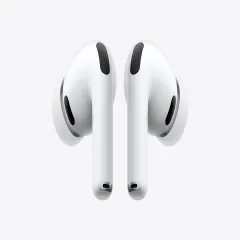
The Apple AirPods Pro 2 (2024, ASIN B0D1XD1ZV3) are the earbuds we recommend for iPad-first nomads because the H2 chip integration with iPadOS is exceptional in ways Android-compatible earbuds cannot replicate: Automatic device switching between iPad, iPhone, and Mac is instant and reliable; Transparency Mode adjusts ambient sound dynamically based on your environment; Spatial Audio with head tracking works in supported apps without configuration.
Active Noise Cancellation is class-leading for earbuds — not over-ear headphone level, but sufficient to make a loud cafe feel like a quiet room. For video calls, the microphones use directional audio to isolate your voice from background noise.
The Hearing Aid feature added in 2024 provides clinical-grade hearing protection and, for users with mild to moderate hearing loss, can function as an over-the-counter hearing aid. This is a legitimate differentiator from the competition.
Battery life: 6 hours per charge with ANC on, 30 hours total with the case. The MagSafe case supports wireless charging and USB-C, keeping your cable kit simple.
For a full comparison of travel earbuds and headphones, our best noise-cancelling headphones guide covers the category comprehensively.
Pros
- Seamless Apple ecosystem switching between iPad, iPhone, Mac
- Class-leading ANC for earbuds — dramatically reduces cafe noise
- Spatial Audio with head tracking for immersive media
- 30-hour total battery life with MagSafe case
- IP54 sweat and water resistance
Cons
- Expensive at ~$179 for earbuds
- Short 6-hour single-charge life with ANC on
- Limited benefit outside Apple ecosystem
- ANC not as powerful as over-ear alternatives for loud environments
10. Anker 10,000mAh 30W Power Bank — Best Portable Charger
The Anker 10,000mAh Portable Charger (30W, ASIN B0CZ9M6X8Q) keeps an iPad Air charged through a full workday away from an outlet. At 10,000mAh, it provides roughly 0.8–1 full charge for an iPad Air 11-inch — enough to extend a 12-hour battery to 20+ hours in a single carry.
The 30W USB-C output charges an iPad Air at near-maximum speed (iPads accept up to 20W), meaning from 20% to 80% takes about an hour. A second USB-A port handles a phone simultaneously. The slim, flat profile sits easily in a daypack hip belt pocket or top pouch without creating bulk.
At around $28, this is the lowest-cost high-impact accessory on this list. The difference between running out of iPad battery at 4pm in a cafe with no outlets versus having a power bank in your bag is the difference between a productive day and an afternoon of searching for a seat near a wall plug.
See our best power banks for travel guide for higher-capacity and multi-device options.
Pros
- 30W USB-C output charges iPad at full speed
- 10,000mAh provides ~1 full iPad charge
- Dual ports — charges iPad and phone simultaneously
- Slim flat profile packs without creating bulk
- Excellent value at ~$28
Cons
- Not enough capacity for laptop charging
- No built-in cable
- USB-A second port is slower (12W) for phone charging
- No wireless charging

Can an iPad Replace a Laptop for Remote Work?
The honest answer is: for many remote workers, yes — with caveats.
What iPad handles exceptionally well: writing (Ulysses, iA Writer, Google Docs), video calls (Zoom, Teams, Meet), email and calendar, project management (Notion, Asana, Linear), photo editing (Lightroom for iPad is full-featured), light video editing (LumaFusion is genuinely powerful), and virtually any browser-based work.
Where iPad still falls short: professional desktop software with no iPad version (Adobe Premiere, Final Cut Pro on Mac, complex Excel modeling), running local development environments (though VS Code Web and cloud IDEs like GitHub Codespaces close this gap significantly), and managing multiple complex windows simultaneously (Stage Manager helps but has limits).
The practical test: Look at the last 20 hours of work you did on your laptop. If more than 15 of those hours were browser-based or in apps with strong iPad versions, you can replace the laptop. If you spent significant time in terminal, Premiere, or complex spreadsheets, keep the laptop.
The iPad advantage for travelers is real: longer battery life (up to 12 hours versus 6-8 hours for most laptops), lighter hardware, instant-on reliability, and cellular connectivity without a SIM tray. For nomads who move frequently, these operational advantages compound over months of travel.
iPad Air vs. iPad Pro vs. iPad Mini: Which to Buy for Travel
iPad Air 11-inch (M3/M4) — The Travel Sweet Spot ($599–$799)
The Air delivers full Apple Silicon performance — the M3/M4 chip is faster than 90% of laptop chips sold today. Battery life hits 12 hours. It supports Apple Pencil Pro, Magic Keyboard, all USB-C accessories. At 469g for the base model, it is light enough to hold comfortably for reading. Start here unless you have a specific reason to go Pro.
iPad Pro 11-inch (M5/M4) — Only If You Need It ($999+)
The Pro adds a tandem OLED display (brighter, better contrast), LIDAR scanner, ProRes video recording, Thunderbolt port (faster USB-C), and 16GB RAM on the Pro configurations. For photographers, videographers, and 3D artists, these matter. For everyone else, you are paying $400+ for features that do not affect daily productivity. The M5 chip improvement over M3 in the Air is imperceptible for non-ML workloads.
iPad Mini 7 (A17 Pro) — The Ultralight Option ($499)
At 293g and 195mm tall, the Mini fits in a jacket pocket. The A17 Pro chip is fast. Apple Pencil Pro compatible. The limitations: the 8.3-inch screen is cramped for productivity work, especially with the keyboard. The Mini 7 does not support Magic Keyboard or Combo Touch. Best for readers, note-takers, and travelers who want the lightest possible option and do not need full keyboard productivity.
Final Verdict
Build your iPad travel kit in layers based on your work intensity:
Occasional traveler (light work on the road): ESR Trifold Case + Lamicall Stand + Apple Pencil USB-C + Anker Power Bank. Under $140 total. Handles emails, notes, video calls, and content consumption without adding significant bag weight.
Frequent nomad (iPad as primary work machine): Logitech Combo Touch + Apple Pencil Pro + Anker 541 Hub + Paperlike + SanDisk SSD + Anker Power Bank. Under $500 total. Covers all serious work scenarios with detachable keyboard flexibility.
Full-time iPad worker (laptop replacement setup): Apple Magic Keyboard + Apple Pencil Pro + Anker 541 Hub + Paperlike + SanDisk SSD + AirPods Pro 2 + Anker Power Bank. Under $800 total. The complete pro setup that competes with any travel laptop on productivity and exceeds most on portability and battery life.
Get the Apple Magic Keyboard — Best iPad Keyboard Get the Logitech Combo Touch — Best Value Keyboard CaseRelated Reading
- Best Portable Keyboards & Mice for Digital Nomads — If you use a stand instead of a keyboard case, pair it with a wireless keyboard
- Best USB-C Hubs for Travel — Full coverage of USB-C hubs including laptop options
- Best External SSDs for Travel — Compare capacities and form factors for your storage needs
- Best Portable Monitors for Travel — Add a second screen to your iPad via USB-C + Stage Manager
- Best Portable Laptop Stands — If you carry both a laptop and iPad, a stand serves both
- Best Noise-Cancelling Headphones for Travel — Over-ear alternatives to AirPods for long work sessions
- Best Power Banks for Travel — Higher-capacity options for multi-day off-grid work
- Best Travel Insurance for Digital Nomads — Cover your iPad and accessories against theft and damage
Frequently Asked Questions
Can you use an iPad as a laptop replacement for remote work?
Yes — with the right accessories. A Magic Keyboard or Logitech Combo Touch gives you a full keyboard and trackpad. A USB-C hub adds ports. An external SSD handles file storage. The main limitations are app availability (some professional desktop software has no iPad version) and multi-window multitasking, which is more constrained than macOS or Windows. For writing, design, project management, video calls, and light coding, an iPad Pro or Air with good accessories is a genuine laptop substitute that weighs less and has better battery life.
Which iPad is best for travel — Air, Pro, or Mini?
The iPad Air 11-inch (M3/M4) hits the best travel sweet spot: full-featured Apple Silicon performance, compatibility with Apple Pencil Pro and Magic Keyboard, and a 12-hour battery life — all at $599 starting price. The iPad Pro 11-inch is faster but costs $999+ and the difference is imperceptible for most workflows. The iPad Mini 7 is the most portable at just 293g, but its small screen limits productivity for serious work. Unless you need ProRes video, LIDAR, or pro-level graphics, the Air is the travel pick.
Is the Apple Magic Keyboard worth it for iPad?
Yes, if you type as your primary work activity. The Magic Keyboard turns your iPad into a clamshell laptop with a full keyboard, trackpad, and USB-C pass-through charging in a single accessory. Key feel is excellent — close to a MacBook keyboard. The floating cantilever design is rock-solid. The main downsides are price ($299 for iPad Pro 11-inch) and added weight (581g / 1.28 lbs). If you primarily browse, sketch, watch content, or do light emailing, the Magic Keyboard's cost is hard to justify. For full-time remote workers using iPad daily, it is the single biggest upgrade available.
What is the difference between Apple Pencil Pro and Apple Pencil USB-C?
The Apple Pencil Pro ($129) adds barrel roll detection (rotates brush orientation as you turn the pencil), squeeze gesture, Find My support, and hover precision preview before the tip touches the screen. It charges and pairs magnetically. The Apple Pencil USB-C ($79) is the budget option — it has tilt sensitivity and pixel-perfect precision but no pressure sensitivity levels, no barrel roll, no squeeze gesture, and charges via USB-C cable rather than magnetically. For serious artists and note-takers, the Pro is worth the $50 premium. For casual annotations and signing documents, the USB-C model is fine.
Do you need a screen protector with an Apple Pencil?
Not technically — but a matte paper-feel screen protector like Paperlike dramatically improves the Apple Pencil experience. Without it, the glass surface is very slippery and the Pencil glides rather than grips. The Paperlike gives enough friction to feel like writing on paper, which reduces hand fatigue and improves handwriting legibility significantly. It also eliminates glare in outdoor and bright cafe environments. The trade-off is a slight reduction in display sharpness and color vibrancy — imperceptible for most people, noticeable if you use your iPad for photo/video editing.
What USB-C hub should I buy for iPad?
The Anker 541 USB-C Hub (6-in-1, ASIN B09XDZKH5P) is purpose-built for iPad Pro and iPad Air — it plugs directly into the iPad's USB-C port and adds HDMI, SD/microSD slots, USB-A, and USB-C pass-through charging in a compact body. General-purpose 7-in-1 laptop hubs work too, but they are bulkier and require a cable. The iPad-specific hub stays flush against the device, which is cleaner for travel. Note: iPadOS limits some hub functionality — 4K output requires Stage Manager, and file transfers work best with the Files app.