Best Webcams for Remote Work 2026: Tested for Video Calls & Travel
We tested the top webcams for remote workers and digital nomads. Logitech Brio, C920s, Insta360 Link, Opal C1, Anker B600 — here are the best for video calls.
Your laptop webcam makes you look like you are testifying via satellite link from 2004. The grainy, washed-out, harshly lit image it produces is fine for a quick check-in with friends — but when you are on a client call from a coworking space in Lisbon or presenting to your team from a Bali Airbnb, looking professional matters. An external webcam is the single most impactful upgrade you can make to your remote work setup, and most good ones cost less than a day of coworking.
We have tested every major webcam on the market through months of daily video calls across time zones, Airbnb lighting conditions that ranged from “bright Mediterranean afternoon” to “cave in Chiang Mai at midnight,” and WiFi connections that made 4K a fantasy. We have taken hundreds of calls on Zoom, Google Meet, and Microsoft Teams, comparing image quality, autofocus speed, low-light performance, and the one thing most reviews ignore: how easy each webcam is to throw in a bag and set up in a new workspace the next day.
Here are the webcams that survived real-world remote work — and the ones we actually pack when we travel.
Quick Comparison: Best Webcams for Remote Work
| Feature | Logitech Brio 4K | Logitech C920s | Insta360 Link | Opal C1 | Anker B600 | Elgato Facecam |
|---|---|---|---|---|---|---|
| Resolution | 4K / 1080p / 720p | 1080p / 720p | 4K / 1080p / 720p | 4K / 1080p | 1080p | 1080p60 |
| Field of View | 65° / 78° / 90° adjustable | 78° fixed | 79.5° (AI tracking) | 80° fixed | 95° fixed | 82° fixed |
| Autofocus | Yes (fast infrared) | Yes | Yes (AI-powered) | Yes (PDAF) | Yes | Fixed focus (manual set) |
| Low-Light | ★★★★☆ | ★★★☆☆ | ★★★★☆ | ★★★★★ | ★★★★☆ | ★★★★☆ |
| Built-in Mic | Dual omnidirectional | Dual stereo | Dual noise-cancelling | No | 4-mic array (noise-cancelling) | No |
| Connection | USB-A (USB-C adapter included) | USB-A | USB-C | USB-C | USB-C | USB-C |
| Weight | 63g | 162g | 106g | 80g | 124g | 88g |
| Privacy Shutter | No (removable clip cover) | Yes (built-in) | Yes (gesture-activated) | No | Yes (lens cover) | No |
| Price | ~$160 | ~$60 | ~$230 | ~$175 | ~$130 | ~$150 |
| Our Pick | Best Overall | Best Value | Best AI Features | Best Low-Light | Best Built-in Audio | Best for Creators |
| Visit Logitech Brio 4K | Visit Logitech C920s | Visit Insta360 Link | Visit Opal C1 | Visit Anker B600 | Visit Elgato Facecam |
How We Tested
We evaluated each webcam on the criteria that matter for remote workers and digital nomads — not pixel-peeping lab tests, but the things that determine whether your colleagues think you are a professional or someone calling from a bunker:
- Image quality in real lighting. How does the webcam perform in a bright coworking space, a dimly lit Airbnb bedroom, mixed lighting (window behind you), and the harsh overhead fluorescents of a cafe? We tested in all four scenarios.
- Autofocus speed and accuracy. Does the camera focus quickly when you lean in to read something or lean back? Does it hunt (focus pulsing back and forth) during calls?
- Low-light performance. This is the single most important factor for nomads. You will not always control your lighting. How much noise, grain, and color distortion appears when the lighting is poor?
- Microphone quality. For webcams with built-in mics — is the audio good enough for professional calls without headphones?
- Portability. Weight, cable management, and how easily the webcam fits in a tech organizer or daypack.
- USB compatibility. Does it use USB-C natively, or require an adapter for modern laptops?
- Setup friction. Plug-and-play or does it need proprietary software and drivers?
Every webcam was tested as a daily driver for at least two weeks across multiple locations and lighting conditions.
Best Webcams for Remote Work and Digital Nomads
1. Logitech Brio 4K — Best Overall
The Logitech Brio 4K is the webcam we recommend to most remote workers, and it has held that position for good reason. It produces consistently excellent video quality across a wide range of lighting conditions, focuses quickly and accurately, and offers adjustable field-of-view options that no other webcam in this roundup matches.
The 4K sensor is technically capable of ultra-high-definition video, but that is not why you buy it. No major video conferencing platform transmits 4K — Zoom caps at 1080p, Google Meet and Teams are often lower. The value of a 4K sensor at 1080p output is better per-pixel quality. The Brio downsamples from its 4K sensor to produce a cleaner, more detailed 1080p image than webcams with native 1080p sensors. Think of it as the difference between a phone photo cropped to fit versus one taken at the correct zoom level.
Adjustable field of view is a genuinely useful feature. The Brio offers three FOV settings: 65° (tight headshot, hides messy backgrounds), 78° (standard framing), and 90° (wide, good for showing a whiteboard or two people). We used 65° in cramped Airbnb bedrooms to hide the unmade bed behind us, and 78° in proper coworking setups with clean backgrounds. Being able to switch in the Logi Tune software without physically moving the camera is a real convenience.
Autofocus uses infrared sensing, which is faster and more accurate than contrast-based autofocus. In practice, the Brio locked focus in under 0.5 seconds when we leaned forward and back. No hunting, no pulsing — just fast, decisive focus changes. This matters more than you think on calls; a camera that constantly hunts for focus is subconsciously distracting to the people watching you.
Low-light performance is strong. The Brio handled dimly lit Airbnb rooms and late-evening cafe work sessions well. Image quality degraded noticeably below about 50 lux (equivalent to a room lit by a single desk lamp), but remained usable. The Opal C1 edges it out in truly dark environments, but the Brio performs well in the moderate-to-dim conditions you will encounter most often.
The connection is USB-A with an included USB-C adapter. This means it works with virtually any computer, old or new. The cable is long (2.2m), which gives you flexibility in monitor placement. If your laptop only has USB-C ports, the included adapter works perfectly — or use a USB-C hub that you are probably already carrying.
At 63g, the Brio is the lightest webcam on this list and takes up minimal space in a bag.
Pros
- Best overall image quality with 4K sensor downsampling to crisp 1080p
- Adjustable FOV (65°/78°/90°) — adapt framing to any workspace
- Fast infrared autofocus with no hunting or pulsing
- Strong low-light performance for dim Airbnbs and cafes
- Lightest webcam at 63g — highly portable
- USB-A with included USB-C adapter — works with any computer
- Windows Hello facial recognition support
Cons
- No built-in privacy shutter (removable clip cover included)
- Logi Tune software required for FOV adjustment — not available on Linux
- Premium price at $160
- USB-A native — USB-C users need the included adapter
- Dual omnidirectional mics are adequate but not exceptional
Best for: Remote workers who want the best all-around webcam with maximum flexibility. The adjustable FOV and excellent autofocus make it the most versatile option for changing workspaces.
Check Logitech Brio 4K on Amazon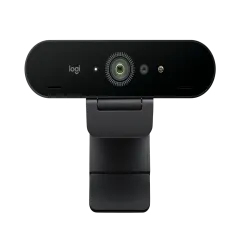
2. Logitech C920s — Best Value
The Logitech C920s is the webcam that remote workers have been buying for a decade — and for good reason. It delivers solid 1080p video, reliable autofocus, a built-in privacy shutter, and the kind of plug-and-play simplicity that means you can set it up in 10 seconds at any workstation. All for about $60.
The C920s will not win any awards for image quality against $200+ webcams. In good lighting (well-lit coworking space, window-lit desk), it produces a clean, sharp 1080p image that looks thoroughly professional on Zoom and Google Meet. Colors are accurate, skin tones are natural, and the autofocus, while slower than the Brio’s infrared system, settles reliably within 1-2 seconds.
Low-light performance is where it shows its price. In dim environments, the C920s produces noticeably more noise and grain than the Brio or Opal C1. A dimly lit Airbnb bedroom at night produced a usable but visibly grainy image. If you frequently work in poorly lit spaces, the Brio or Opal C1 justify their premium. If you work in reasonably lit spaces most of the time, the C920s is perfectly fine.
The built-in privacy shutter is a physical sliding cover that blocks the lens when not in use. No software, no worrying about whether the camera is really off. Slide it closed and the lens is physically covered. Simple, reliable, and appreciated.
Dual stereo microphones produce clear audio for calls. Not as good as the Anker B600’s 4-mic array or a dedicated headset, but sufficient for casual and professional calls in quiet environments. In noisy cafes, you will want headphones with a built-in mic — see our best noise-cancelling headphones for travel guide.
At 162g and a compact form factor, the C920s fits easily into a tech organizer and adds negligible weight to your travel setup.
Pros
- Exceptional value at ~$60 — best price-to-performance ratio
- Built-in privacy shutter — physical lens cover
- Reliable 1080p image in good lighting conditions
- True plug-and-play — no software needed for basic operation
- Compact and lightweight (162g) for travel
- Proven, reliable hardware — millions sold, well-supported
Cons
- Low-light performance is noticeably weaker than premium webcams
- Autofocus is slower than infrared-based systems (1-2 seconds)
- 78° fixed FOV — no adjustment option
- USB-A only — requires adapter for USB-C laptops
- 1080p sensor cannot match 4K downsampled quality
Best for: Budget-conscious remote workers, anyone who needs a reliable webcam without overthinking it, and travelers who want a solid backup camera that costs less than a nice dinner.
Check Logitech C920s on Amazon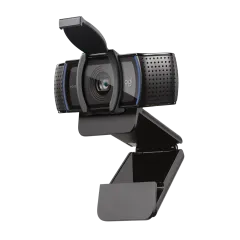
3. Insta360 Link — Best AI Features
The Insta360 Link is unlike any other webcam on this list. It sits on a motorized gimbal that physically tracks your movement — turning, tilting, and zooming to keep you centered in the frame as you move around. Walk to your whiteboard, lean over to grab a document, stand up to stretch — the camera follows you. It is simultaneously the most impressive and the most divisive webcam we tested.
AI tracking is the headline feature, and it works genuinely well. The 3-axis gimbal smoothly follows your face and upper body with minimal delay. When we stood up and walked 3 feet to point at a whiteboard, the camera tracked the movement seamlessly. When we sat back down, it returned to the original framing. This is not a digital crop-and-zoom trick — the camera physically moves to follow you, maintaining 4K quality throughout.
The tracking has additional modes beyond face-following. Whiteboard mode recognizes a whiteboard in frame, enhances legibility, and flips the image so text reads correctly. Overhead mode points the camera straight down at your desk for product demonstrations or document reviews. Portrait mode creates a vertical composition for content creation. For educators, presenters, and content creators, these modes are genuinely useful.
4K video quality is excellent — on par with the Brio in good lighting and slightly better in moderate-to-dim conditions. The 1/2” sensor is larger than most webcam sensors, contributing to cleaner low-light performance. Colors are natural, autofocus is fast, and the downsampled 1080p output for video calls is crisp.
The built-in microphone array with dual noise-cancelling mics delivers above-average call audio. Not headset quality, but a clear step above most webcam microphones.
USB-C native — no adapters needed for modern laptops. The cable is 1.5m, which is adequate for most desk setups.
Privacy is handled via gesture control. Wave your palm at the camera to activate privacy mode — the gimbal physically points the camera downward, blocking the lens. Wave again to reactivate. Clever, though a physical shutter would be more reassuring for the paranoid.
At $230, the Insta360 Link is the most expensive webcam on this list. The AI tracking justifies the premium for presenters and educators. For standard video calls where you sit in a chair and do not move much, the tracking is impressive but not essential.
Pros
- AI-powered physical tracking keeps you centered as you move
- Whiteboard and overhead modes for presentations and demos
- Excellent 4K video quality with large 1/2 inch sensor
- Strong low-light performance
- USB-C native — modern connectivity
- Gesture-controlled privacy mode
- Dual noise-cancelling microphones
Cons
- Most expensive at $230 — premium for AI features many may not use
- Heavier at 106g with the gimbal mechanism
- Gimbal motor makes a faint whirring sound when tracking
- Requires Insta360 Link Controller software for AI features
- Overkill for standard sit-down video calls
- Gimbal mechanism is a potential point of failure during travel
Best for: Remote workers who present, teach, or create content. Anyone who moves during calls — standing desk users, whiteboard enthusiasts, educators. Not worth the premium for sit-down-and-talk video calls.
Check Insta360 Link on Amazon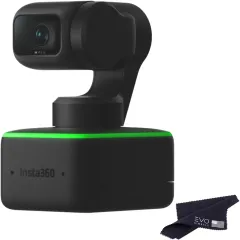
4. Opal C1 — Best Low-Light Performance
The Opal C1 is built for one thing: making you look incredible on camera, regardless of your lighting conditions. It is the webcam equivalent of a professional portrait camera, and in dimly lit environments — which is where most nomads actually work — it produces the cleanest, most flattering image of any webcam we tested.
Low-light performance is exceptional. Where the C920s becomes grainy and the Brio shows noticeable noise in dim lighting, the Opal C1 produces a smooth, natural image with minimal noise. In a dimly lit Airbnb bedroom with a single desk lamp, the C1 made us look like we were in a properly lit studio. The secret is a combination of a large sensor, PDAF (phase detection autofocus), and aggressive but tasteful software processing that boosts brightness without the artificial, overprocessed look that cheaper webcams produce.
PDAF autofocus (the same technology used in smartphones) is fast and decisive — comparable to the Brio’s infrared system. Focus locks in under 0.5 seconds with no hunting.
There is no built-in microphone. Opal made a deliberate choice to exclude a mic, arguing that webcam mics are universally mediocre and that users should use dedicated audio. We agree in principle — but it means you must have headphones or an external mic for every call. For nomads who always use noise-cancelling headphones, this is not a problem. For anyone who occasionally takes a quick call without headphones, it is an inconvenience.
No privacy shutter and no standard mount. The C1 uses a magnetic mounting system that attaches to your monitor’s top bezel. It is elegant in a fixed setup but less versatile than a standard clip mount when you are constantly changing screens and workstations — the reality for most nomads. The magnetic mount works well on thin-bezeled monitors but can be awkward on thicker laptop screens.
USB-C native with a quality braided cable.
Pros
- Best low-light performance of any webcam we tested
- Fast PDAF autofocus with no hunting
- Natural, flattering image processing — looks like a professional setup
- Compact and lightweight at 80g
- USB-C native with premium cable
- Software offers deep image customization
Cons
- No built-in microphone — requires separate audio
- No standard clip mount — magnetic mount is less versatile for travel
- No privacy shutter
- Opal Composer software is macOS-only (Windows support added but limited)
- Premium price at $175 for a webcam without a mic
- Magnetic mount can slip on thicker laptop screens
Best for: Remote workers who frequently work in dimly lit environments and want studio-quality video without studio lighting. Ideal for stationary setups; less ideal for nomads constantly changing workstations.
Check Opal C1 on Amazon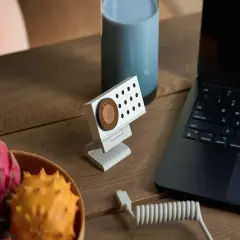
5. Anker B600 — Best Built-in Audio
The Anker B600 solves a problem no other webcam on this list addresses: what if you do not want to carry headphones for every call? It combines a solid 1080p webcam with a 4-microphone noise-cancelling array and a built-in LED light bar — essentially a webcam, microphone, and desk light in one device.
The 4-mic array with AI noise cancellation is genuinely impressive. We tested it from a busy cafe in Medellin with espresso machines, conversation, and street noise. The AI processing isolated our voice and dramatically reduced ambient noise — not quite headset quality, but closer than any other webcam microphone we have used. Teammates on Zoom said they could barely hear the cafe noise. For nomads who hate wearing headphones for casual check-ins and standups, the B600’s built-in audio is a legitimate alternative.
The integrated LED light bar runs along the top edge of the webcam and provides adjustable fill lighting. In dimly lit spaces, it adds enough light to significantly improve image quality without being blindingly bright. At maximum brightness, it is equivalent to a small ring light. At low brightness, it provides subtle fill that softens shadows. The light temperature is adjustable from warm to cool.
1080p video quality is solid — competitive with the C920s and adequate for professional calls. The sensor is not as large as the Brio or Opal C1, and low-light performance without the LED light is average. But the entire point of the B600 is using the built-in light to solve the low-light problem with hardware rather than software.
The field of view is 95° — the widest on this list. This is useful for showing a workspace or whiteboard, but can be too wide for standard headshot framing in small rooms. You may need to zoom in via software.
USB-C native with a sturdy clip mount.
Pros
- Best built-in microphone with 4-mic noise-cancelling array
- Integrated LED light bar improves video in dim environments
- USB-C native — modern connectivity
- 95° wide FOV for workspace and whiteboard visibility
- All-in-one solution — webcam, mic, and light in one device
- Physical privacy cover included
Cons
- 1080p sensor is not as refined as Brio's 4K sensor
- Wider device footprint — bulkier than a standard webcam
- Light bar uses USB power — may drain laptop battery faster
- 95° FOV can be too wide for headshot framing in small spaces
- Heavier at 124g with the integrated components
- Light bar reflections visible on glasses
Best for: Remote workers who want an all-in-one solution without carrying separate microphone and lighting gear. Ideal for frequent callers in varied lighting conditions who prefer not to wear headphones.
Check Anker B600 on Amazon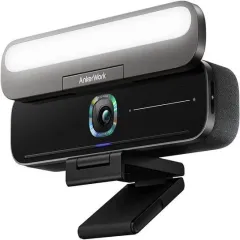
6. Elgato Facecam — Best for Creators
The Elgato Facecam is built for people who care deeply about how their video looks and want granular control over every aspect of the image. It is a webcam designed with content creator sensibilities — no built-in microphone, no autofocus, and no auto-adjustments of any kind. You set everything manually and get exactly the image you want, every time.
Fixed focus (manually set) is intentional. The Facecam uses a fixed focus lens that you set once for your working distance and never touch again. This means zero focus hunting, zero autofocus delays, zero of the distracting back-and-forth focus pulsing that plagues other webcams. The trade-off: if you change your distance to the camera, you need to adjust the focus ring on the lens. For a fixed desk setup, this is actually an advantage — perfectly consistent focus on every call.
1080p at 60fps produces noticeably smoother video than 30fps webcams, particularly when you are gesturing or moving. The difference is subtle on Zoom (which typically caps at 30fps) but visible on higher-bandwidth platforms and content recordings.
The Sony STARVIS sensor delivers strong low-light performance and accurate color reproduction. Elgato deliberately disables all automatic processing — no auto white balance, no auto exposure, no digital zoom. You control everything via the Camera Hub software, save your settings as a profile, and the Facecam loads them instantly every time you plug in. This level of control means the image looks exactly the same every session — no automatic adjustments that change your look from call to call.
No built-in microphone. Like the Opal C1, Elgato assumes you will use dedicated audio. This is the right choice for creators with professional mic setups, but a limitation for casual call-takers.
USB-C native with a premium cable.
Pros
- Zero focus hunting — fixed focus produces perfectly consistent framing
- 1080p60 for smooth, professional video
- Full manual control over exposure, white balance, and color
- Saved profiles load automatically — consistent look every session
- Strong low-light performance with Sony STARVIS sensor
- USB-C native with quality cable
- Compact at 88g — reasonably travel-friendly
Cons
- No built-in microphone — requires separate audio
- No autofocus — manual focus adjustment needed if distance changes
- Requires Elgato Camera Hub software for full configuration
- No privacy shutter
- Manual setup takes time — less plug-and-play than Logitech models
- Premium price at $150 for a 1080p camera without a mic
Best for: Content creators, streamers, and remote workers who want total control over their video image. Anyone with a fixed desk setup who values consistency over flexibility.
Check Elgato Facecam on Amazon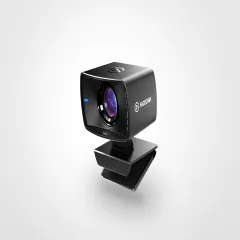
Webcam Tips for Nomads and Remote Workers
Camera Placement
The biggest mistake in webcam setup is not the camera — it is the angle. Place your webcam at eye level for the most natural, professional look. A webcam pointing up from below your chin (typical laptop placement) creates unflattering shadows and the dreaded “chin shot.” A webcam on top of a portable monitor or external display brings the lens to eye height.
Lighting Matters More Than Resolution
A $60 C920s in good lighting will produce a better image than a $230 Insta360 Link in bad lighting. Position yourself facing a window (natural light hitting your face, not behind you). If working at night or in a dim room, the Anker B600’s built-in light bar solves this, or a simple USB ring light ($15-25 on Amazon) makes any webcam look dramatically better.
Travel Packing
For maximum portability, the Logitech C920s wins — compact, lightweight, built-in privacy shutter, and zero moving parts. Pack it in your tech organizer and forget about it until you need it.
If you need the best quality while traveling, the Logitech Brio 4K is the lightest premium webcam at 63g and packs flat.
The Insta360 Link’s motorized gimbal is the most fragile component here — use a padded case if traveling with it.
USB-C Hub Compatibility
If your laptop only has USB-C ports, ensure your USB-C hub has the right connections. USB-A webcams (Brio, C920s) work through any hub with USB-A ports. USB-C webcams (Insta360 Link, Opal C1, Anker B600, Elgato Facecam) can connect directly to your laptop without a hub, saving a port.
Our Final Recommendation
For most remote workers, the Logitech Brio 4K is the webcam to buy. It offers the best combination of image quality, autofocus speed, adjustable field of view, and portability. At $160, it is a one-time investment that makes you look professional on every call for years.
If budget matters, the Logitech C920s at $60 delivers 80% of the Brio’s quality at 38% of the price. It is the most recommended webcam for good reason.
If you present, teach, or create content, the Insta360 Link earns its $230 price with AI tracking that physically follows you around the room.
If you work in dim environments and want the best possible image without external lighting, the Opal C1 produces the cleanest low-light video of anything on this list.
If you hate carrying headphones for every call, the Anker B600 bundles a noise-cancelling mic array and adjustable LED light bar with a solid webcam.
And if you want total manual control over your video image, the Elgato Facecam delivers creator-grade consistency.
Buy the Logitech Brio 4K on Amazon — Our Top PickFor the rest of your remote work setup, check our complete digital nomad tech stack and remote work productivity guide for monitors, keyboards, and ergonomic setups. If you need a monitor to mount your webcam on, see our best portable monitors roundup. And for getting all your gear organized in one bag, our best tech organizer for travel guide covers the top options.
Frequently Asked Questions
Do I need an external webcam for remote work?
If you take video calls more than twice a week, yes. Built-in laptop webcams — even on premium MacBooks and ThinkPads — produce grainy, poorly lit video that makes you look unprofessional. An external webcam with a larger sensor, better autofocus, and proper low-light performance is the single biggest quality upgrade for video calls.
What resolution do I need for video calls?
1080p is the practical sweet spot for video calls in 2026. Zoom, Google Meet, and Microsoft Teams cap video quality at 1080p (and often lower on group calls). A 4K webcam like the Logitech Brio 4K provides better quality per pixel due to superior sensors, but 4K resolution itself is not utilized by any major conferencing platform currently.
Which webcam has the best low-light performance?
The Opal C1 has the best low-light performance we tested, followed closely by the Insta360 Link and Logitech Brio 4K. In dimly lit Airbnbs and cafes, the Opal C1 produces the cleanest, most natural image without excessive noise or artificial brightening.
Are webcams with built-in microphones good enough?
For casual calls, most built-in webcam mics are adequate. For professional meetings, the Anker B600 offers the best built-in audio with its noise-cancelling microphone array and built-in light bar. However, for the best call quality, we recommend pairing any webcam with dedicated headphones — see our guide to the best noise-cancelling headphones for travel.
What is the best portable webcam for travel?
The Logitech C920s is the most travel-friendly webcam — compact, lightweight (162g), USB-A with included cable, and a privacy shutter. The Elgato Facecam is also relatively portable. Avoid the Opal C1 for travel — it lacks a mount clip and requires a magnetic mount that is less versatile for changing setups.
Do I need USB-C for a webcam?
USB-C is strongly preferred for modern laptops, especially MacBooks and newer ThinkPads that may lack USB-A ports. The Insta360 Link, Opal C1, and Elgato Facecam all use USB-C natively. The Logitech Brio 4K and C920s use USB-A but work fine with a USB-A to USB-C adapter or a USB-C hub.