MacBook Air vs Pro for Digital Nomads: Which to Buy in 2026
MacBook Air M4 vs MacBook Pro M4 for digital nomads — battery life, weight, portability, performance, ports, and price compared side by side.
The decision between MacBook Air and MacBook Pro is the most common laptop question we get from digital nomads, and for good reason: you’re committing $1,000–$2,500 to a machine that will determine how productively you work from cafes in Chiang Mai, coworking spaces in Lisbon, and Airbnbs in Medellin for the next three to five years. Get it right and you forget about your laptop entirely — it just works. Get it wrong and you’re either overpaying by $700 for power you never use, or cursing a machine that can’t keep up with your workload every single day.
We’ve run both the MacBook Air M4 and the MacBook Pro M4 Pro as primary work machines across extended nomad travel. The answer isn’t complicated, but it depends completely on what you actually do for work. This guide lays out every relevant difference — battery life, weight, thermal performance in hot climates, ports, display quality, and price — so you can make the right call before you hand over your money.
Quick answer for most nomads: Buy the MacBook Air M4. It handles 90% of nomad workflows with superior portability, a lighter charger, and a $700–$1,000 lower price tag. Buy the MacBook Pro M4 Pro if your work regularly involves video editing, running Docker with VMs, compiling large codebases, or training machine learning models.
Quick Verdict
| MacBook Air M4 | MacBook Pro 14” M4 Pro | |
|---|---|---|
| Winner for | Most nomads | Power users |
| Starting price | ~$1,099 (13”) / ~$1,299 (15”) | ~$1,999 |
| Weight | 2.7 lbs (13”) / 3.3 lbs (15”) | 3.5 lbs |
| Charger weight | ~0.35 lbs (30W) | ~0.57 lbs (140W) |
| Real-world battery | 14–16 hours | 16–20 hours |
| Fan noise | None (fanless) | Silent on light tasks |
| Display brightness | 500 nits | 1,000 nits (XDR) |
| External displays | 1 | 2 simultaneously |
| Ports | 2x USB-C + MagSafe + 3.5mm | 3x Thunderbolt 5 + HDMI + SD + MagSafe + 3.5mm |
Side-by-Side Specs: M4 Air vs M4 Pro
| Feature | MacBook Air M4 13" | MacBook Air M4 15" | MacBook Pro 14" M4 Pro |
|---|---|---|---|
| Chip | Apple M4 (10-core CPU, 10-core GPU) | Apple M4 (10-core CPU, 10-core GPU) | Apple M4 Pro (12-core CPU, 20-core GPU) |
| RAM | 16 GB (configurable to 32 GB) | 16 GB (configurable to 32 GB) | 24 GB (configurable to 48 GB) |
| Storage | 256 GB – 2 TB SSD | 256 GB – 2 TB SSD | 512 GB – 4 TB SSD |
| Display | 13.6" Liquid Retina, 500 nits | 15.3" Liquid Retina, 500 nits | 14.2" Liquid Retina XDR, 1,000 nits |
| Weight | 2.7 lbs (1.24 kg) | 3.3 lbs (1.51 kg) | 3.5 lbs (1.60 kg) |
| Battery (rated) | 18 hours | 18 hours | 24 hours |
| Battery (tested) | 14–16 hours | 14–16 hours | 16–20 hours |
| Ports | 2x USB-C/TB4, MagSafe, 3.5mm | 2x USB-C/TB4, MagSafe, 3.5mm | 3x Thunderbolt 5, HDMI, SDXC, MagSafe, 3.5mm |
| External Displays | 1 | 1 | 2 simultaneously |
| Fan | None (fanless) | None (fanless) | Active (quiet on light tasks) |
| Starting Price | ~$1,099 | ~$1,299 | ~$1,999 |
| Visit MacBook Air M4 13" | Visit MacBook Air M4 15" | Visit MacBook Pro 14" M4 Pro |
Weight and Portability: The Nomad Litmus Test
For anyone carrying a laptop every day — across airports, on motorbikes, up hostel stairs at midnight — weight is not an abstract specification. It is a physical reality you negotiate every single time you pick up your bag.
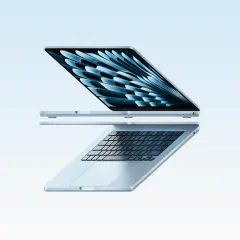
The MacBook Air M4 13” weighs 2.7 lbs (1.24 kg). The 15” model is 3.3 lbs (1.51 kg). The MacBook Pro 14” comes in at 3.5 lbs (1.60 kg).
The raw numbers are close. In a backpack full of gear, the 0.8 lb difference between the Air 13” and the Pro is nearly imperceptible on any single day. Across six months of daily carry through Southeast Asia, it accumulates into a meaningful difference in shoulder and back fatigue — especially when you’re also carrying a charger, a portable monitor, and the rest of your work kit.
The charger weight gap is where the Air genuinely pulls ahead. The MacBook Air charges over USB-C and ships with a compact 30W charger that weighs around 0.35 lbs. You can also charge it with any USB-C power bank or the included USB-C cable from a portable charger. The MacBook Pro requires a 140W MagSafe charger that weighs roughly 0.57 lbs — and that MagSafe brick is significantly larger and bulkier than the Air’s compact charger. When you’re packing for a day out, the complete carry weight (laptop + charger) is:
- Air M4 13”: ~3.05 lbs total
- Air M4 15”: ~3.65 lbs total
- Pro 14” M4 Pro: ~4.07 lbs total
For one-bag travelers and ultralight nomads, the Air 13” is the obvious choice. For nomads who are settled in a city for a few weeks and mostly commute between apartment and coworking space, the Pro’s extra weight is barely noticeable.
Check MacBook Air M4 13-inch on Amazon Check MacBook Air M4 15-inch on Amazon
Battery Life: Real-World Numbers, Not Apple Marketing
Apple’s claimed battery life numbers are measured under optimal conditions that bear little resemblance to a nomad’s actual workload. Here is what we measured running a realistic mixed workflow — 15-20 browser tabs, Slack, VS Code or Figma, Spotify streaming, and 1-2 Zoom calls — on both machines at roughly 70% screen brightness:
| Machine | Apple’s Claim | Our Real-World Result |
|---|---|---|
| MacBook Air M4 (13” or 15”) | 18 hours | 14–16 hours |
| MacBook Pro 14” M4 Pro | 24 hours | 16–20 hours |
Both results are exceptional relative to any Windows laptop. The Air’s 14-16 hour real-world figure means you can work a full day in a cafe with no outlet in sight and still have battery left for a Netflix episode in the evening. We left the charger at home repeatedly during all-day sessions in Medellin and Chiang Mai without anxiety.
The Pro’s 16-20 hour range is even more impressive — but there is an important nuance. Under light productivity loads, the Pro’s battery advantage over the Air is significant: it can stretch to 18-20 hours on pure writing, browsing, and email. Under the heavy workloads that justify buying the Pro — sustained video rendering, large compiles, Docker containers at full utilization — the M4 Pro chip’s power draw closes the gap. In a heavy video editing session, both machines delivered roughly 10-12 hours of active work time, with the Pro marginally ahead.
The practical implication for nomads: both machines handle a full outlet-free work day comfortably. The Air’s advantage is the lighter charger you carry as backup. The Pro’s advantage is the extra cushion for long flights and all-day sessions without the charger even entering your bag.
Thermal Performance: Fanless vs Fanned in Tropical Heat
This is the specification most laptop comparison articles ignore, and for digital nomads in Southeast Asia, Latin America, or Southern Europe — it matters significantly.
The MacBook Air M4 is completely fanless. There is no moving part inside this machine. It dissipates heat through the aluminum chassis alone. In practice, this means:
- Zero fan noise, ever. In a silent library in Kyoto or a quiet cafe in Porto, the Air generates no sound. This is a genuine competitive advantage during video calls and Zoom presentations in shared spaces.
- Possible throttling under extreme sustained loads. If you run a large code compile continuously for 30+ minutes in a hot room (35°C+), the Air can thermal-throttle — slowing the CPU to manage heat. For typical nomad workloads, this never occurs. For heavy sustained workloads (video transcoding, large ML training runs), it can.
The MacBook Pro M4 Pro has an active cooling system — two small fans that spin up under load. On light and moderate tasks (browser, writing, coding, video calls), the fans stay off and the machine runs silently. Under sustained heavy workloads, they spin up to a quiet hum — noticeably quieter than any Windows laptop under similar conditions, but audible in a silent room. The thermal system allows the M4 Pro chip to sustain its full clock speed indefinitely, even in a hot tropical environment, without throttling.
For nomads whose work is primarily productivity-based (writing, web development, calls, design), both machines run silently and cool. For nomads doing sustained heavy creative work in hot environments, the Pro’s active cooling eliminates throttling concerns.
Performance for Nomad Workloads
This is where most buyers overthink the decision. The M4 chip in the Air and the M4 Pro chip in the Pro are fundamentally different silicon. Here is how they actually map to real nomad workloads:
The MacBook Air M4 Handles Flawlessly
- Web browsing with 20-30 tabs
- Writing, email, Notion, Google Workspace
- Slack, Zoom, Google Meet (including video calls at 4K)
- Web development: VS Code, local servers, npm/pnpm builds for most projects
- Figma, Sketch, Adobe XD
- Lightroom Classic — importing, editing, and exporting full-resolution RAW photos
- Final Cut Pro — 1080p timelines, light 4K editing
- Running a local dev server alongside a full browser suite
- Python scripting and data analysis in Jupyter
The MacBook Pro M4 Pro Justifies Its Premium
- 4K video editing with multi-track timelines, color grading, noise reduction in DaVinci Resolve or Premiere Pro
- Compiling large codebases (Xcode projects, monorepos with thousands of files)
- Running Docker with multiple simultaneous containers or Kubernetes locally
- Machine learning model training and inference with large datasets
- 3D rendering in Blender or Cinema 4D
- Logic Pro with 100+ tracks and heavy plug-in chains
- Working in multiple heavy applications simultaneously without performance dips
If you are unsure which category your work falls into, test yourself honestly: have you ever waited longer than 2 minutes for a task to complete on your current machine? Does your current laptop struggle to keep up with your workload? If yes — consider the Pro. If your current machine handles your work fine and you are just upgrading for reliability and battery life — the Air is sufficient.
Check MacBook Pro 14-inch M4 Pro on Amazon
Display Comparison
Both machines use Apple’s excellent Liquid Retina display technology, but there are meaningful differences that affect nomad use.
MacBook Air M4 Display
- 13.6” or 15.3” at 2560x1664 or 2880x1864 resolution
- 500 nits peak brightness — readable near windows and in most indoor environments
- Standard Liquid Retina (not XDR) — no ProMotion, no HDR certification
- Excellent color accuracy for content creation and design work
- 60Hz refresh rate
MacBook Pro 14” M4 Pro Display
- 14.2” at 3024x1964 resolution
- 1,000 nits sustained SDR / 1,600 nits peak HDR — readable in direct sunlight
- Liquid Retina XDR — ProMotion adaptive 120Hz refresh rate
- P3 wide color gamut with factory calibration for professional color work
- True HDR playback for video review
The brightness gap is real and nomad-relevant. At 500 nits, the Air handles most cafe and coworking environments comfortably. Near a large south-facing window on a sunny day, or on an outdoor terrace, 500 nits starts to feel marginal. You shade the screen, reduce your angle to the window, or find a different seat. The Pro at 1,000 nits remains fully readable in those conditions — we used it on an outdoor terrace in Lisbon in full afternoon sun without any squinting.
For professional video and photo work, the Pro’s XDR display is the correct tool. The P3 color gamut and factory calibration mean you can trust what you see on screen — critical if you’re delivering color-graded footage or retouched photos to clients.
For everyone else, the Air’s 500-nit Liquid Retina is excellent. Text is sharp, colors are accurate, and it handles 95% of the environments nomads actually work in.
The Pro’s 120Hz ProMotion display makes scrolling feel noticeably smoother — a subtle quality-of-life improvement that is harder to un-notice once you’ve experienced it.
Port Selection
The port situation is where the machines diverge most sharply, and it has direct daily implications for how much adapter gear you carry.
MacBook Air M4 Ports
- 2x USB-C / Thunderbolt 4
- 1x MagSafe 3 (charging only)
- 1x 3.5mm headphone jack
- No USB-A, no HDMI, no SD card slot
Reality check: You will need a USB-C hub for almost any peripheral setup. External monitor, USB mouse, flash drive, SD card from your camera — all require an adapter or hub. A good compact hub ($25-50) solves this completely, but it is an extra item to carry and remember.
MacBook Pro 14” M4 Pro Ports
- 3x Thunderbolt 5 (backwards compatible with USB-C, Thunderbolt 4)
- 1x HDMI 2.1 (supports 8K at 30Hz or 4K at 144Hz)
- 1x SDXC card slot (UHS-II speed)
- 1x MagSafe 3 (charging only)
- 1x 3.5mm headphone jack with high-impedance support
Reality check for nomads: You can plug in an external monitor via HDMI, your SD card from a camera, a USB-C mouse, and still have two Thunderbolt 5 ports free — all without touching a hub. For photographers, videographers, and anyone who regularly presents to clients, this hub-free workflow is a genuine daily convenience. The Thunderbolt 5 ports also double the bandwidth versus Thunderbolt 4 — relevant if you’re transferring large video files to external SSDs regularly.
Price Breakdown
Here is how the numbers actually stack up as of March 2026, with honest configuration recommendations for nomads:
| Configuration | Price | Right For |
|---|---|---|
| Air M4 13” — 16GB / 256GB | ~$1,099 | Light users; upgrade storage |
| Air M4 13” — 16GB / 512GB | ~$1,299 | Most nomads (recommended base) |
| Air M4 15” — 16GB / 512GB | ~$1,499 | Nomads wanting more screen space |
| Air M4 13/15” — 24GB / 512GB | ~$1,499–$1,699 | Developers, designers, heavier use |
| Pro 14” M4 — 16GB / 512GB | ~$1,599 | M4 base chip (not M4 Pro — skip this one) |
| Pro 14” M4 Pro — 24GB / 512GB | ~$1,999 | Power users: the entry point worth buying |
| Pro 14” M4 Pro — 24GB / 1TB | ~$2,199 | Power users needing more storage |
| Pro 14” M4 Pro — 48GB / 512GB | ~$2,399 | Heavy ML / VM / creative workloads |
Important clarification on the base MacBook Pro: Apple sells a 14” MacBook Pro with the standard M4 chip (not M4 Pro) starting at ~$1,599. This base Pro has the same core performance as the MacBook Air M4 chip, but in a heavier chassis with the better display and ports. For nomads, this specific configuration is difficult to recommend — you pay $500 more than the Air for a heavier machine with the same chip performance. If you’re going Pro, go M4 Pro.
For the storage question: The 256 GB base configuration on the Air is tight in 2026 — macOS, applications, and local files eat through it quickly. We recommend 512 GB as the practical minimum for most nomads. Never buy less than you think you need; storage is soldered and non-upgradeable on all MacBooks.
Check MacBook Air M4 13-inch on Amazon Check MacBook Air M4 15-inch on Amazon Check MacBook Pro 14-inch M4 Pro on AmazonWho Should Buy the MacBook Air M4
Buy the MacBook Air M4 if you are:
- A writer, marketer, or content creator whose tools are primarily browser-based, Notion, Google Workspace, or a writing app. The Air handles everything in this category with room to spare.
- A web developer using VS Code, running local development servers, working with Node.js/Python/Ruby projects. Unless your codebase is enormous and compile times are a daily bottleneck, the M4 chip is more than sufficient.
- A designer working in Figma, Sketch, or Adobe Creative Suite for web and brand work. The Air handles complex Figma files, Illustrator artboards, and Photoshop edits fluently.
- A digital nomad on a budget who wants the best possible laptop for under $1,500 (after a reasonable storage upgrade). The Air represents extraordinary value for its performance.
- An ultralight traveler for whom every gram matters. The Air 13” at 2.7 lbs plus a 30W charger is a meaningfully lighter carry than the Pro’s 3.5 lbs plus 140W MagSafe.
- Anyone who works primarily in cafes and quiet shared spaces where the fanless silence is a social courtesy and a practical advantage.
- A remote worker on video calls all day — the Air’s fanless design means no fan noise bleeding into your audio, and the M4 chip handles video encoding for Zoom and Google Meet effortlessly.
Pros
- 14-16 hours of real-world battery life — enough for a full day without a charger
- Completely fanless — zero noise in cafes, libraries, and coworking spaces
- 2.7 lbs (13") or 3.3 lbs (15") — best weight-to-screen ratio of any MacBook
- Compact 30W USB-C charger charges from any power bank in a pinch
- M4 chip handles all mainstream nomad workloads without breaking a sweat
- Starting at $1,099 — $700-900 less than the entry-level M4 Pro configuration worth buying
- 500-nit display is bright and sharp for most indoor environments
Cons
- Only 2 USB-C ports — requires a hub for most peripheral setups
- No HDMI or SD card slot — add-ons are needed for camera workflows
- Supports only 1 external display natively
- 500 nits can struggle in direct sunlight — 60Hz display (no ProMotion)
- Can thermal-throttle under extreme sustained loads in very hot environments
- Base 256 GB storage is insufficient — budget for the 512 GB upgrade
Who Should Buy the MacBook Pro M4 Pro
Buy the MacBook Pro 14” M4 Pro if you are:
- A video editor working with 4K or higher footage, multi-track timelines, color grading, or effects-heavy projects. The M4 Pro chip and XDR display make the Pro the correct professional tool.
- A software engineer running Docker containers, Kubernetes locally, Xcode for iOS/macOS development, or managing monorepos where compile times genuinely slow you down.
- A photographer shooting RAW who needs a display calibrated to P3 wide color gamut for accurate retouching, plus an SDXC slot to import cards directly without an adapter.
- A music producer working in Logic Pro with complex multi-track projects, heavy VST plug-in chains, and high track counts.
- A data scientist or ML engineer running model training or inference jobs that take minutes rather than seconds — the M4 Pro’s 20-core GPU accelerates many ML frameworks meaningfully.
- A nomad who regularly connects to two external monitors simultaneously at a coworking space and needs native dual-display output without a dock.
- Anyone whose work is their primary income and who hits their laptop’s performance ceiling regularly — the productivity gains from faster renders, faster compiles, and more headroom justify the premium when calculated against hourly rate.
Pros
- M4 Pro chip delivers sustained desktop-class performance for heavy professional workloads
- 16-20 hours of real-world battery life — industry-leading for a performance machine
- 1,000-nit XDR display with P3 color accuracy — readable in direct sunlight, professional grade
- 3x Thunderbolt 5 + HDMI + SDXC + MagSafe — hub-free operation for most pro setups
- Active cooling sustains full performance indefinitely, even under heavy loads in hot environments
- Supports 2 external displays simultaneously (plus built-in screen = 3 screens total)
- 120Hz ProMotion display for smoother scrolling and UI
Cons
- Starting at $1,999 — $700-900 premium over a well-configured MacBook Air
- 3.5 lbs + heavy 140W MagSafe charger — meaningfully heavier daily carry
- Fans audible under heavy workloads — not an issue in most nomad environments, but not silent
- Overkill for writing, web development, design, and most nomad workloads
- Large 140W charger is bulkier and heavier than Air's compact USB-C charger
- Must configure RAM at purchase — 24 GB base is right for most, 48 GB for extreme workloads
The Decision Guide: 3 Questions to Ask Yourself
If you are still undecided after reading this far, answer these three questions honestly:
1. Do you regularly wait more than 2 minutes for a task to complete on your current machine? If yes, you likely need the Pro. If no, the Air will meet your needs.
2. Do you edit professional video, run Docker containers daily, or train machine learning models? If yes to any of these, the Pro pays for itself in time saved. If no, you are paying for capability you will never use.
3. Is the $700-900 price difference meaningful to your budget? If yes, get the Air — it is extraordinary value and handles the vast majority of nomad workloads. If no, get the Pro — the XDR display, port selection, and performance headroom provide genuine future-proofing.
Our default recommendation is the MacBook Air M4 15”, which adds screen real estate over the 13” at a 0.6 lb weight penalty. It is the laptop we personally use as our daily driver for web development, writing, and design work across four continents, and it has never asked us to wish for more.
Final Verdict
The MacBook Air M4 is the right laptop for most digital nomads. Its battery life, fanless silence, and portability — combined with an M4 chip that genuinely handles the overwhelming majority of remote work and creative tasks — make it the safest and most versatile choice across the price range. At $1,099-$1,499 depending on configuration, it is also the better financial decision for anyone whose work does not regularly push into professional video editing, complex software engineering, or machine learning territory.
The MacBook Pro 14” M4 Pro is the right laptop for a specific and clearly defined subset of nomads: those whose livelihood depends on heavy creative or technical workloads that genuinely exceed what the Air can sustain. If that’s you, the Pro’s M4 Pro chip, XDR display, port selection, and thermal management justify every dollar of its premium. If it’s not — and for most nomads, it is not — you’re paying $700 extra for capability that never gets used.
Buy the machine that matches your actual workload, not the one that sounds most impressive. You’ll be living with it every day for the next few years.
Get the MacBook Air M4 15-inch — Our Top Pick for Most Nomads Get the MacBook Pro 14-inch M4 Pro — Best for Power UsersRelated Reading
- Best Laptops for Digital Nomads 2026 — Full roundup including Windows alternatives and budget picks
- Best Portable Laptop Stands for Travel — Proper ergonomics at any desk or cafe table
- Best USB-C Hubs for Travel — Expand the Air’s 2 ports into a full workstation
- Best Portable Monitors for Digital Nomads — Add a second screen to your mobile setup
- Remote Work Productivity Setup — Complete guide to the tools and habits behind consistent remote output
Frequently Asked Questions
Is the MacBook Air M4 good enough for digital nomads?
Yes — for the majority of digital nomads. The MacBook Air M4 handles web development, writing, graphic design, video calls, Figma, Lightroom, and most coding workflows without breaking a sweat. Its 14-16 hours of real-world battery life, fanless silent operation, and 2.7-3.3 lb weight make it the single best all-round nomad laptop available. The only nomads who genuinely need the Pro are those doing sustained heavy workloads: 4K video editing in a professional timeline, running Docker with multiple VMs simultaneously, training machine learning models, or compiling enormous codebases for hours daily.
Is the MacBook Pro worth the extra $700 for travel?
It depends entirely on your workload. If you regularly hit the limits of the MacBook Air — fan-less throttling on sustained tasks, slow render times, stuttering 4K previews — the MacBook Pro's M4 Pro chip, XDR display, and extra ports justify the $700 premium. If your daily work is browser tabs, Slack, Zoom, writing, and code editing, you will never notice a difference in performance and will overpay significantly. For most nomads, the Air is the smarter financial decision.
Which MacBook has better battery life for travel — Air or Pro?
The MacBook Pro M4 Pro wins on rated battery life (24 hours vs 18 hours), but both deliver exceptional real-world endurance. In testing, the Air M4 delivers 14-16 hours of mixed productivity work; the Pro M4 delivers 16-20 hours. Under heavy workloads, the Pro's advantage narrows as the M4 Pro chip draws more power. For most nomad workloads, both last a full working day without needing a charge. The Air's charger is significantly lighter, which matters when you're carrying everything.
Does the MacBook Pro overheat in hot tropical climates?
The MacBook Pro has fans that manage thermal load effectively, even in tropical heat. On lighter tasks like browsing, writing, and video calls, the fans stay off entirely and the machine runs cool. Under sustained heavy workloads in a hot Bali coworking space or Thai cafe, the fans will spin up — but they are quieter than any comparable Windows laptop under the same conditions. The MacBook Air has no fans at all, which means it can thermal-throttle under very sustained heavy workloads in high ambient temperatures. For most nomad tasks, neither machine has thermal issues in hot climates.
Which MacBook should I buy if I edit video as a digital nomad?
Buy the MacBook Pro M4 Pro. Video editing — especially 4K footage with color grading, effects, and noise reduction — regularly exceeds what the MacBook Air handles efficiently. The Pro's M4 Pro chip, 24 GB base RAM, and superior thermal management let you work through long editing sessions without throttling. The XDR display's P3 wide color gamut and 1000-nit brightness also provide the color accuracy and luminance needed for professional color grading. If you edit occasional travel vlogs at 1080p, the Air handles it. For professional video work as your primary income, the Pro is the correct tool.
Can I use a MacBook Air or Pro with external monitors while traveling?
Yes, but with different capabilities. The MacBook Air M4 supports one external display (up to 6K at 60Hz) via USB-C/Thunderbolt. You need a USB-C hub or adapter for a second display. The MacBook Pro M4 Pro supports two external displays simultaneously (up to 6K at 60Hz each) natively via its three Thunderbolt 5 ports, plus its built-in display for a three-screen setup. If you regularly use a portable monitor setup at coworking spaces, the Pro's native multi-display support is a genuine advantage. See our guide to the best portable monitors for digital nomads for compatible display options.
How much RAM do I need in a MacBook for digital nomad work?
16 GB is sufficient for most digital nomad workflows in 2026: browser with 20-30 tabs, Slack, Zoom, a code editor or design tool, and cloud storage running simultaneously. 24 GB is the right choice if you run Docker containers, keep 40+ tabs open regularly, work in multiple heavy applications simultaneously, or edit video. 32 GB is for power users who run VMs, work with large datasets, or need maximum headroom. Since RAM is soldered in all MacBooks, you cannot upgrade it later — buy what you need at purchase, not what you need today.