How to Set Up a VPN on a Travel Router (Step-by-Step Guide)
Step-by-step guide to setting up NordVPN or Surfshark on a GL.iNet travel router. Protect all your devices at once with one VPN connection.
Here’s a problem we kept running into while traveling: installing VPN apps on every single device. Laptop, phone, tablet, streaming stick, sometimes a second phone. Configuring each one, remembering to connect each one, managing each one. It’s tedious, and some devices — like smart TVs, gaming consoles, and older Kindles — don’t even support VPN apps.
The solution is stupidly simple: put the VPN on your router instead.
One connection. Every device on your network protected automatically. No apps to install, no connections to remember, no per-device limits to worry about. We’ve been running this setup for over a year across Southeast Asia, Europe, and Latin America, and it’s transformed how we handle VPN connectivity on the road.
This guide walks you through exactly how to set it up, step by step, using the travel router we recommend and the VPNs we trust.
Why Run a VPN on Your Travel Router?
Before we get into the setup, here’s why this approach is worth the effort:
Protect Every Device Automatically
With a VPN on your router, every device that connects to your WiFi is automatically encrypted. Your laptop, phone, tablet, streaming device, smart watch, e-reader — everything. No VPN app needed on any of them. Guests who join your WiFi get VPN protection too.
Bypass Per-Device Limits
NordVPN allows 10 simultaneous connections. Surfshark offers unlimited. But with a router-based VPN, the router counts as one device regardless of how many devices are connected to it. This is especially useful with NordVPN if you’re traveling with a partner and both have multiple devices.
Protect Devices That Don’t Support VPN Apps
Smart TVs, Roku sticks, game consoles, IoT devices, older Kindles — these devices can’t run VPN apps natively. Connect them to your VPN router and they’re protected.
Simpler Day-to-Day Use
Once configured, you just power on the router and connect your devices. The VPN connects automatically. No remembering to toggle apps on each device, no “did I connect?” anxiety before opening your banking app.
Create a Secure Bubble in Any Location
Hotel WiFi, Airbnb internet, coworking space networks — you have no idea how they’re configured. Your travel router creates a private, encrypted network inside the hotel’s network. Your devices connect to your router, and your router handles all the VPN encryption before sending traffic through the hotel’s internet.
Recommended Hardware: GL.iNet Beryl AX
After testing several travel routers over the past 18 months — including the GL.iNet Slate Plus, GL.iNet Beryl AX, TP-Link TL-WR902AC, and the Slate AX — we recommend the GL.iNet Beryl AX (GL-MT3000) for most travelers.
| Feature | GL.iNet Beryl AX (GL-MT3000) |
|---|---|
| WiFi | WiFi 6 (802.11ax), dual-band |
| VPN Protocols | WireGuard, OpenVPN |
| Processor | MediaTek MT7981B (dual-core 1.3 GHz) |
| RAM | 512 MB DDR4 |
| Speed (WireGuard) | Up to 560 Mbps |
| Connected Devices | Up to 150 |
| Size | 4.5 × 3.2 × 1.3 inches |
| Weight | 8.4 oz (238g) |
| Power | USB-C |
| Price | ~$89 |
Why We Recommend It
- Built-in VPN client — Native support for WireGuard and OpenVPN with a simple web interface. No command-line required.
- Powerful enough for VPN encryption — The dual-core processor handles WireGuard encryption at speeds up to 560 Mbps. Most hotel and cafe WiFi connections are 10-100 Mbps, so the router won’t be the bottleneck.
- WiFi 6 — Better range, faster connections, and better performance with multiple devices compared to WiFi 5 routers.
- USB-C powered — Charges with the same cable as your phone and laptop. Can even run off a power bank in a pinch.
- Compact — Smaller than a deck of cards. Easily fits in a daypack pocket.
- OpenWrt-based — Runs a customized version of OpenWrt for advanced users who want full control.
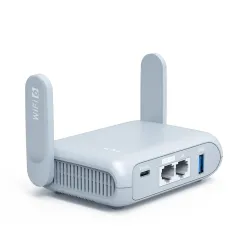
For more travel router options and comparisons, check out our best mobile hotspots guide.
What You’ll Need Before Starting
Gather these before you begin:
- GL.iNet Beryl AX router (or another GL.iNet router — the steps are nearly identical)
- Active VPN subscription — NordVPN or Surfshark
- A laptop or phone — To access the router’s admin panel
- An internet connection — Hotel WiFi, Ethernet, or a mobile hotspot to connect the router to
- 10-15 minutes — That’s genuinely all it takes
Step-by-Step: NordVPN on GL.iNet Beryl AX (WireGuard)
WireGuard delivers the best speeds on a travel router. This is the method we recommend.
Step 1: Get Your NordVPN WireGuard Credentials
- Log in to your NordVPN account at nordvpn.com
- Go to Nord Account → Services → NordVPN
- Click on Set up NordVPN manually
- Select the WireGuard tab
- Click Generate new key pair — NordVPN will generate a private key
- Copy the private key and save it somewhere safe (a notes app, text file — you’ll need it shortly)
- On the same page, find the Recommended server section. Pick a server location (e.g., United States #1234). Note the server hostname (e.g.,
us1234.nordvpn.com) - Download the WireGuard configuration file for that server, or note the server’s public key and endpoint
Step 2: Connect to Your GL.iNet Router
- Power on the Beryl AX using the USB-C cable
- Wait 60 seconds for it to boot (the LED will turn solid)
- On your laptop or phone, connect to the router’s WiFi network — it will be named something like
GL-MT3000-xxx - The default WiFi password is printed on the bottom of the router (or in the quick start guide)
- Open a web browser and go to 192.168.8.1
- On first setup, you’ll be asked to set an admin password. Choose something strong — this protects your router’s settings
- You’ll land on the GL.iNet admin panel dashboard
Step 3: Connect the Router to the Internet
Before configuring the VPN, the router needs an internet connection:
For Hotel WiFi (Repeater Mode):
- In the admin panel, go to Internet → Repeater
- Click Scan — the router will find nearby WiFi networks
- Select the hotel’s WiFi and enter the password
- Click Join — the router now has internet access through the hotel WiFi
For Ethernet:
- Plug an Ethernet cable from the hotel’s wall port into the router’s WAN port
- The router auto-detects the connection — no configuration needed
For Mobile Hotspot / USB Tethering:
- Connect your phone to the router via USB
- Enable USB tethering on your phone
- The router will use your phone’s data connection as its internet source
Step 4: Configure NordVPN WireGuard on the Router
- In the admin panel, go to VPN → VPN Dashboard
- Click WireGuard Client
- Click Set up WireGuard Manually or Add a New WireGuard Configuration
- Select Manual Configuration
- Enter the following details:
- Name: NordVPN US (or whatever location you chose)
- Server Address / Endpoint: The server hostname from Step 1 (e.g.,
us1234.nordvpn.com:51820) - Private Key: Paste the private key you generated in Step 1
- Public Key: The server’s public key from the NordVPN config
- Address:
10.5.0.2/16(this is standard for NordVPN WireGuard configs) - DNS:
103.86.96.100(NordVPN’s DNS server)
- Click Save
- Toggle the WireGuard client to ON
- Wait 5-10 seconds — the status should change to Connected
Step 5: Verify the Connection
- On a device connected to the router’s WiFi, open a browser
- Go to ipleak.net or whatismyipaddress.com
- Your IP address should show the VPN server’s location (e.g., United States), not your actual location
- If it shows your real location, the VPN isn’t active — double-check your configuration
Congratulations! Every device connected to your GL.iNet router is now protected by NordVPN.
Step-by-Step: Surfshark on GL.iNet Beryl AX (WireGuard)
The process is similar to NordVPN, with different credential generation steps.
Step 1: Get Your Surfshark WireGuard Configuration
- Log in to your Surfshark account at surfshark.com
- Go to VPN → Manual Setup → Router
- Select WireGuard as the protocol
- Choose a server location (e.g., United States — New York)
- Click Generate Configuration or Get Credentials
- Surfshark will provide:
- A private key
- A public key for the server
- The server endpoint address and port
- The assigned IP address
- Download the .conf file or copy these values
Step 2: Configure on the Router
- In the GL.iNet admin panel, go to VPN → VPN Dashboard → WireGuard Client
- Click Add a New WireGuard Configuration
- If you downloaded a
.conffile:- Select Upload Configuration File
- Upload the
.conffile from Surfshark - The router will auto-populate all fields
- If entering manually, fill in the same fields as the NordVPN setup with Surfshark’s values
- Click Save
- Toggle WireGuard to ON
- Verify at ipleak.net that your IP shows the Surfshark server location
Step 3: Add Multiple Server Locations
One of the advantages of the GL.iNet router is that you can save multiple VPN configurations and switch between them:
- Repeat the configuration process for different server locations (e.g., US, UK, Japan)
- Save each with a descriptive name: “Surfshark US,” “Surfshark UK,” etc.
- Switch between them from the VPN dashboard with one click — useful when you need a specific country’s IP address for streaming
Speed Test Results: Router VPN vs. App VPN
We tested both approaches in a coworking space in Lisbon with a 200 Mbps base connection. Here’s what we measured:
| Setup | Download (Mbps) | Upload (Mbps) | Latency (ms) |
|---|---|---|---|
| No VPN (baseline) | 195 | 98 | 8 |
| NordVPN app (laptop, NordLynx) | 178 | 91 | 12 |
| NordVPN on Beryl AX (WireGuard) | 162 | 82 | 14 |
| Surfshark app (laptop, WireGuard) | 170 | 85 | 13 |
| Surfshark on Beryl AX (WireGuard) | 155 | 78 | 15 |
Analysis: Running the VPN on the router adds roughly 8-10% more speed reduction compared to running the app directly on your device. On a 200 Mbps connection, that’s the difference between 178 and 162 Mbps with NordVPN — both perfectly fast for any travel use case. On typical hotel WiFi (20-50 Mbps), the difference is negligible.
The trade-off is worth it: slightly lower top-end speeds in exchange for automatic protection on every device, no apps to manage, and coverage for devices that can’t run VPN software.
Optimizing Your Router VPN Performance
Use WireGuard, Not OpenVPN
This is the single most important setting. WireGuard is 2-4x faster than OpenVPN on travel routers because it’s less CPU-intensive. The GL.iNet Beryl AX handles WireGuard encryption easily; OpenVPN can struggle on the same hardware.
Connect to the Nearest VPN Server
The closer the VPN server to your physical location, the faster your connection. If you’re in Portugal, use a European server. If you’re in Thailand, use a Singapore or Tokyo server. Only connect to distant servers (like US from Asia) when you specifically need that country’s IP.
Enable DNS Over TLS
In the GL.iNet admin panel, go to More Settings → DNS and enable DNS over TLS. This prevents DNS leaks and ensures your DNS queries are encrypted too, adding another layer of privacy.
Update Router Firmware
GL.iNet regularly releases firmware updates with performance improvements and security patches. Check System → Upgrade periodically to stay current.
Use the 5 GHz WiFi Band
Connect your devices to the router’s 5 GHz network (usually labeled with -5G in the SSID) for faster local WiFi speeds. The 2.4 GHz band has better range but lower maximum speeds.
Troubleshooting Common Issues
VPN Won’t Connect
- Check your internet connection: The router needs a working internet connection before the VPN can connect. Verify the Repeater or WAN connection is active.
- Verify your credentials: Double-check the private key and server details. A single mistyped character will prevent connection.
- Try a different server: The specific server might be down. Switch to another server in the same country.
- Check the time/date: If the router’s clock is significantly wrong, WireGuard authentication can fail. Go to System → Time Zone and ensure it’s correct.
Slow Speeds Through the Router
- Switch from OpenVPN to WireGuard — This alone can double your speeds.
- Connect to a closer VPN server — Cross-continental connections always have higher latency.
- Reduce connected devices — If 20+ devices are active, the router’s CPU may be overloaded.
- Check the base connection — Run a speed test without the VPN. If the hotel WiFi itself is slow (under 10 Mbps), the VPN can’t improve that.
- Restart the router — Sometimes a fresh connection resolves congestion.
Hotel Captive Portal (Login Page) Issues
Many hotels require you to accept terms or enter a room number before internet access is granted. This can conflict with the VPN:
- Disable the VPN temporarily on the router
- Connect a device to the router’s WiFi
- Open a browser — the hotel’s login page should appear
- Complete the login/accept terms
- Re-enable the VPN on the router
- All devices connected to the router now have both internet and VPN access
Some Websites or Services Don’t Work
A few services block VPN IP addresses. If a specific site doesn’t load:
- Try a different VPN server — Different IP address, different result
- Disable the VPN temporarily for that specific task
- Use split tunneling (if your VPN app on a device supports it) to exclude specific sites from the VPN tunnel
Best VPN Settings for Travel Routers
Here are the settings we use on our GL.iNet Beryl AX for the best balance of security and performance:
| Setting | Recommended Value |
|---|---|
| VPN Protocol | WireGuard |
| Kill Switch | Enabled (prevents traffic if VPN drops) |
| DNS | VPN provider’s DNS (not ISP default) |
| DNS over TLS | Enabled |
| Auto-Connect | Enabled (VPN activates on boot) |
| IPv6 | Disabled (prevents IPv6 leaks) |
| 5 GHz Channel | Auto or manually set to least congested |
| Admin Password | Strong, unique (not the default) |
The kill switch is particularly important: if the VPN connection drops, the kill switch blocks all internet traffic from your devices until the VPN reconnects. This prevents accidental exposure of your real IP address.
Our Complete Travel Connectivity Stack
A VPN-equipped travel router is just one piece of our connectivity toolkit. Here’s what we carry:
- GL.iNet Beryl AX — VPN router protecting all devices ( Amazon )
- NordVPN — Our primary VPN, configured on the router via WireGuard
- eSIM — For cellular data anywhere. An eSIM gives you independent, encrypted mobile data without relying on hotel WiFi at all. See our best eSIM providers guide.
- USB-C cable and small power bank — Keeps the router running all day
This setup costs under $150 total (router + annual VPN) and gives us secure, reliable internet in any country. The router connects to whatever internet is available — hotel WiFi, an Ethernet port, phone tethering — and wraps it all in VPN encryption before distributing it to our devices.
Which VPN Is Better for Router Use?
Both NordVPN and Surfshark work well on GL.iNet routers. Here’s how they compare specifically for router-based use:
| Feature | NordVPN | Surfshark |
|---|---|---|
| Router Protocol | WireGuard (NordLynx) | WireGuard |
| Setup Difficulty | Easy (manual config) | Easy (.conf file upload) |
| Speed on Router | 162 Mbps (on 200 Mbps base) | 155 Mbps (on 200 Mbps base) |
| Server Selection | 6,400+ servers | 3,200+ servers |
| Kill Switch | Via router setting | Via router setting |
| Price | $3.39/mo (2-yr plan) | $2.19/mo (2-yr plan) |
| Best For | Fastest speeds, streaming | Budget, unlimited devices |
| Visit NordVPN | Visit Surfshark |
Our pick: NordVPN for its faster speeds on routers and larger server network. However, if budget is the priority, Surfshark saves over $14/year and performs well.
Get NordVPN for Your Travel Router (30-Day Guarantee) Get Surfshark for Your Travel Router (30-Day Guarantee)Read our detailed reviews: NordVPN review | Surfshark review | NordVPN vs Surfshark
The Bottom Line
Setting up a VPN on a travel router takes about 15 minutes and transforms your travel connectivity. Instead of juggling VPN apps across every device, you get one router that automatically encrypts everything. The speed penalty compared to app-based VPN is minimal (8-10%), and the convenience gain is substantial.
The GL.iNet Beryl AX is the sweet spot for travelers — powerful enough for smooth VPN performance, compact enough to fit in a daypack, and USB-C powered so you don’t need another charger. Pair it with NordVPN — the fastest VPN we’ve tested on routers — and you have a secure, private network you can set up in any hotel room in under 5 minutes.
Get NordVPN →Frequently Asked Questions
What is the best travel router for VPN?
The GL.iNet Beryl AX (GL-MT3000) is our top recommendation. It has native VPN support for WireGuard and OpenVPN, a dual-core processor powerful enough to handle VPN encryption at full speed, WiFi 6 support, and a compact, USB-C-powered design perfect for travel. At around $89, it offers excellent value.
Does a VPN on a router slow down internet speed?
Yes, but the impact is manageable. In our testing with the GL.iNet Beryl AX using WireGuard, speeds dropped about 15-20% compared to a direct connection (vs. 5-10% using a VPN app on a laptop). On typical hotel WiFi speeds of 20-50 Mbps, this difference is barely noticeable in practice.
Can I use Surfshark on a GL.iNet router?
Yes. Surfshark provides WireGuard configuration files that you can upload directly to the GL.iNet admin panel. The process takes about 5 minutes. WireGuard is the recommended protocol for the best speeds — avoid OpenVPN on routers unless you have a specific reason.
Can I use NordVPN on a GL.iNet router?
Yes. NordVPN supports WireGuard on GL.iNet routers. You generate a private key and download server configuration details from your NordVPN account, then enter them in the router’s admin panel. It’s the setup we use daily and recommend.
How many devices can connect through a VPN router?
The GL.iNet Beryl AX supports up to 150 connected devices. In practice, performance is best with 10-20 active devices, which covers most travelers’ needs — laptop, phone, tablet, streaming stick, smartwatch, and a partner’s devices. The VPN counts as one connection regardless of how many devices are behind it.
Do I need a VPN subscription to use a VPN on a router?
Yes. The travel router is the hardware that runs the VPN client, but you still need an active subscription with a VPN provider like NordVPN or Surfshark. The router replaces the VPN app on individual devices — it doesn’t replace the VPN service itself.
Frequently Asked Questions
What is the best travel router for VPN?
The GL.iNet Beryl AX (GL-MT3000) is our top pick. It has built-in VPN support for OpenVPN and WireGuard, a powerful processor that handles VPN encryption without significant speed loss, dual-band WiFi 6, and a compact form factor perfect for travel. It costs around $89 on Amazon.
Does a VPN on a router slow down internet speed?
Yes, but modern travel routers handle it well. In our tests with the GL.iNet Beryl AX, WireGuard/NordLynx reduced speeds by about 15-20% compared to using the VPN app directly on a laptop (which showed 5-10% reduction). The trade-off is that every device on your network is protected automatically.
Can I use Surfshark on a GL.iNet router?
Yes. Surfshark supports both WireGuard and OpenVPN on GL.iNet routers. WireGuard is the recommended protocol for the best speeds. You generate WireGuard configuration files from your Surfshark account dashboard and upload them to the router's admin panel.
Can I use NordVPN on a GL.iNet router?
Yes. NordVPN is one of the best VPNs for router use. You can set it up via WireGuard (NordLynx) or OpenVPN. We recommend the WireGuard method for the best speeds. You generate credentials from your NordVPN account and configure them on the router.
How many devices can connect through a VPN router?
The GL.iNet Beryl AX supports up to 150 connected devices, though practical performance is best with 10-20 active devices. Every device connected to the router's WiFi automatically gets VPN protection without installing any VPN apps.
Do I need a VPN subscription to use a VPN on a router?
Yes. The travel router provides the hardware platform, but you still need an active VPN subscription. NordVPN and Surfshark both support router configurations. The VPN subscription covers the router connection plus any app-based connections on the same account.